Viewer Extension Applications
Flywheel offers the ability to extend viewer and form functionality by creating an application. Applications can be simple HTML documents or complex, multi-file web apps as long as the entry document is accessible to all users of the Flywheel instance. Applications are loaded in an iframe and communicate with the Flywheel instance over a channel via the Extension SDK.
Example Applications
For examples of Flywheel-provided extension applications, see Applications Examples.
Registration Location
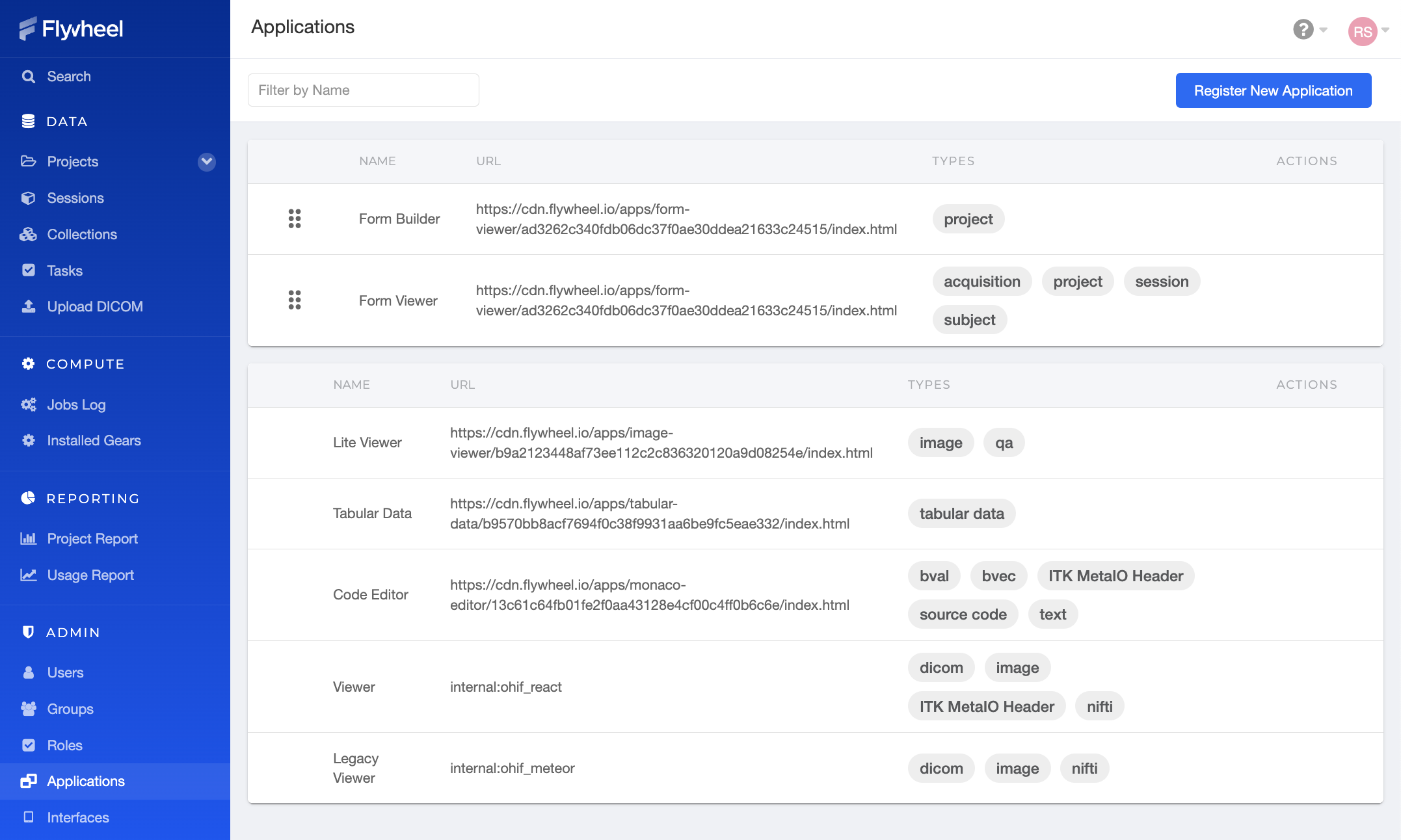
The Site Applications page lists all applications registered at the site. Site Admin users can add and modify custom applications. The bottom section contains the default Flywheel applications, which cannot be modified.
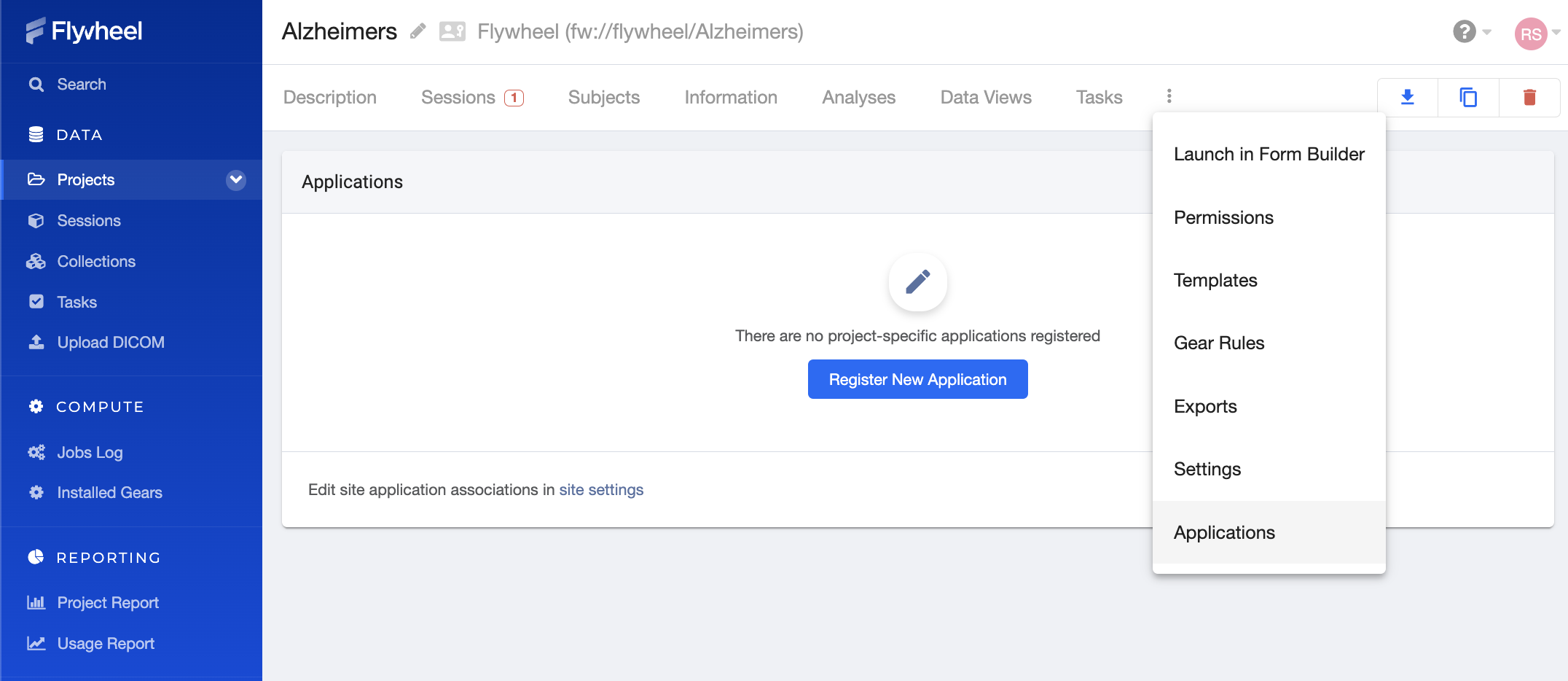
The Project Applications page lists all applications registered at and only available within the project. Project Admin users can add and modify custom applications. No default applications are provided for Projects.
Application Priority
To tailor where applications are made available to users, it matters where applications are registered (Site vs Project), their order, and configuration. Those factors all play a part in controlling their availability and priority. Priority affects the order in which applications appear in the container or file action menus, and the highest-priority application for a file becomes its default viewer.
Applications are prioritized top-down, in the following order of sections:
- Applications registered at the project level
- Applications registered at the site level
- Default site applications
Tips for managing application priority:
- Applications can be reordered within a section, but not across sections.
- When multiple applications with the same name are valid, only the highest priority one will be available.
- To register an application for a type without making it the default viewer, re-register the default application with the same name at a higher priority than the other applications.
Example
To register an application that can interact with, but not be the default for, DICOM files, register a new application with its own name, then create another registration above it with these options:
- Name: Viewer (v3)
- URL:
internal:ohif_viewer_v3 - Match Container or File Types: dicom
Registration Settings
When creating a new registration or editing an existing one, a handful of settings are available. Of these, the Type, Name, and URL are required.
Type
Viewer applications are surfaced in container or file action menus. These types of applications are designed to present the contents of a container or file beyond what is available within the Flywheel web interface.
Form applications can render and handle forms that are defined in project settings. These forms are listed in project, subject, and session information areas.
Name
The name is both a label for the application in action menus and a unique identifier for the application. When resolving applications for a container or file, duplicate valid applications sharing a name will be collapsed into the highest-priority registration.
URL
This is the entry URL for the application, resolving to an HTML document. The URL should be accessible to everyone who will use the application. The URL should be hosted over HTTPS to avoid mixed content issues in the browser, although browser settings can be modified to accommodate application development over HTTP.
Description
This is an optional description of what this application is used for. It only appears in the Applications admin page.
Match Container or File Types
At a high level, this list associates the application with container or file types defined in Flywheel. When a type is selected, all containers or files of that type list the application in their action menus. To restrict the registration to additional properties, define matcher JSON by clicking the type to narrow.
Matcher for Type
This field is revealed after choosing or clicking on a type in the previous field. It is a JSON object that can target specific properties on container or file records. Keys in the JSON object correspond to properties in these records and the values define how to process the match. Nested properties can be accessed using dots between levels.
The most straightforward matcher is equality, but other matcher strategies are defined. Strategies can have long object forms or short forms depending on their complexity.
Tip
Matching against custom metadata is only supported under the info.BIDS metadata object.
Equality
This will check if the matcher value and property value are equal. For example, register an image viewer for files with the PNG mime type:
Short form:
Long form:
Regular Expression
The matcher value will be evaluated against the property as a regular expression. Regex will be assumed as a short form if the matcher value is a string that begins with ^ or ends with $. For example, register a results viewer for analysis output from a particular gear:
Short form:
Long form:
Existence
Check whether a property is present. For example, define a viewer for a file with BIDS data:
Long form only:
Contains
Check whether an array property (such as tags) contains a value. For example, define a viewer that navigates to the source image hosted by an external service.
Long form only:
Tip
The "contains" matcher was introduced in Flywheel Enterprise version 16.16.0. If you are using an earlier version of Flywheel Enterprise, configuring this matcher will have no effect.
Application Options
Application Options is an optional JSON object passed to the application when it loads, used to configure its behavior. The supported options are defined by each application, so consult the application's own documentation for the values it accepts.
For example, the Form Builder and Viewer application uses an options object to select whether it launches in builder or viewer mode: