Remove Files Marked for Deletion
When a Security Champion marks a malware finding for deletion, Flywheel does not delete the file. A user with permission to delete the file removes it from its container. Project Admins and Collection Admins can use the Malware Triage page as a work list of findings marked for deletion in the projects and collections they administer. For background, see Storage Malware Scanning.
Prerequisites
- Storage malware scanning is enabled on your site.
- To delete a file, you need the Delete Device Data or Delete Non-Device Data permission. See the permission matrix.
Find Findings Marked for Deletion
- In the Admin section of the left navigation, select Malware Triage.
- Select All Findings.
- Click the filter button.
- Under Decision, select Marked for deletion.
- Optional: Under Detection Date Range, set a Start Date and End Date.
Findings whose files still need to be removed show Pending Removal in the Status column.
Findings with Multiple Files
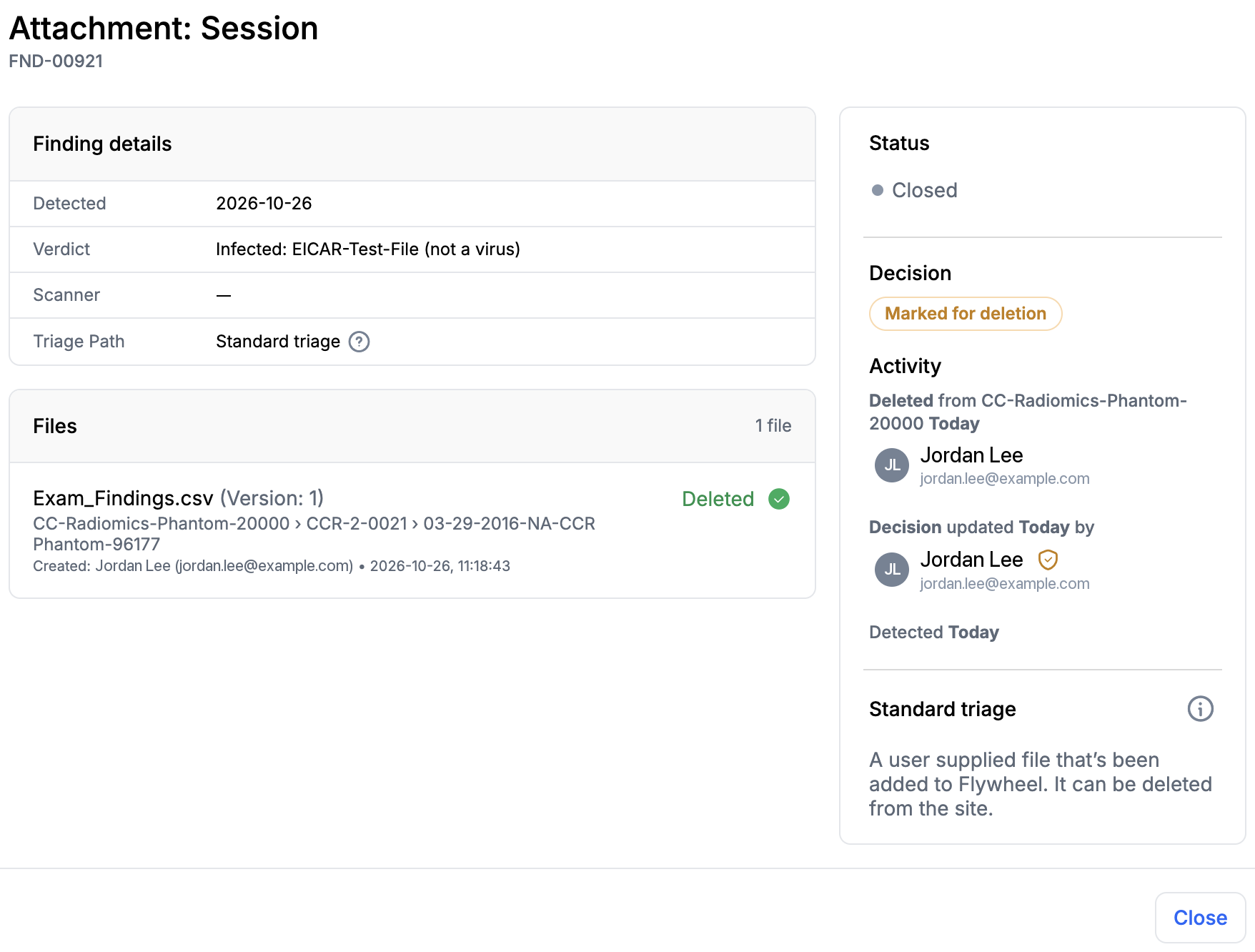
A finding lists more than one file when the same file exists in more than one place. For example, a project copied with Smart Copy reuses the source project's files, so a finding on one of those files lists the file in each project. Remove every file listed in the finding. The finding stays in Pending Removal until all of its files are removed, and then changes to Closed.
Remove a File
Important: Delete the version listed in the finding
Each file in a finding shows the version that the malware scanner flagged, such as Version: 1. Delete that version of the file. If a newer, clean version of the file was uploaded after the scan, delete only the version listed in the finding; you do not need to delete the newer version. See Deleting a Previous Version.
- Click the finding to open its details.
- In Files, click Open location next to the file.
- Delete the version of the file listed in the finding. See Files for how to delete a file, and Deleting a Previous Version for how to delete an earlier version.
- Repeat for each file listed in the finding.
The finding shows each removed file as Deleted, and changes to Closed after all of its files are removed.