Triage Malware Findings
Security Champions use the Malware Triage page to review malware findings and record a decision for each one. Site Admins, Project Admins, and Collection Admins can view findings, but cannot record decisions unless they are also Security Champions. For background, see Storage Malware Scanning.
Prerequisites
- Storage malware scanning is enabled on your site.
- To record decisions, you need the Security Champion role. Ask a Site Admin to assign it to you.
Open Malware Triage
In the Admin section of the left navigation, select Malware Triage. The link in a finding email also opens the finding.
The Infected Findings table lists findings. Select Needs Decision to show findings that still need a decision, or All Findings to show every finding.
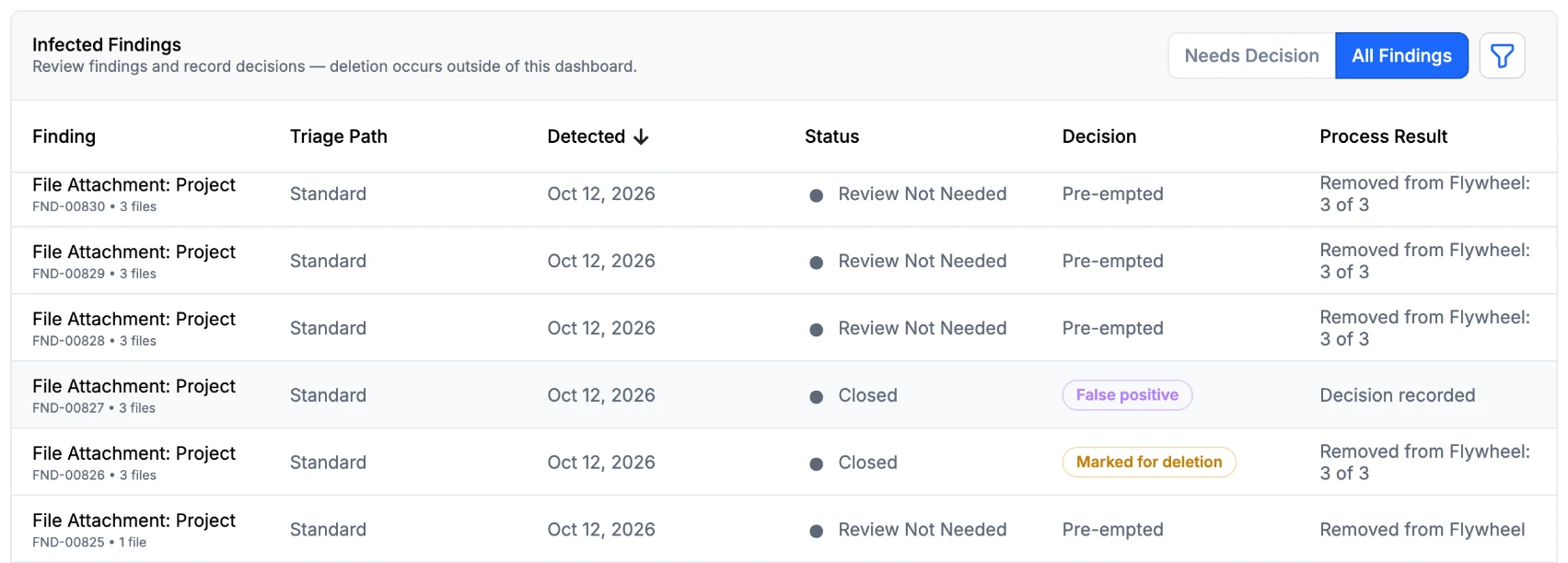
The Status column shows where each finding is in the review:
| Status | Meaning |
|---|---|
| Needs Decision | No decision has been recorded. |
| Pending Removal | The finding is marked for deletion, and its files have not all been removed. |
| Closed | A decision has been recorded and no further action is needed. |
| Review Not Needed | The finding's files were removed before anyone recorded a decision. The Decision column shows Pre-empted. |
Review a Finding
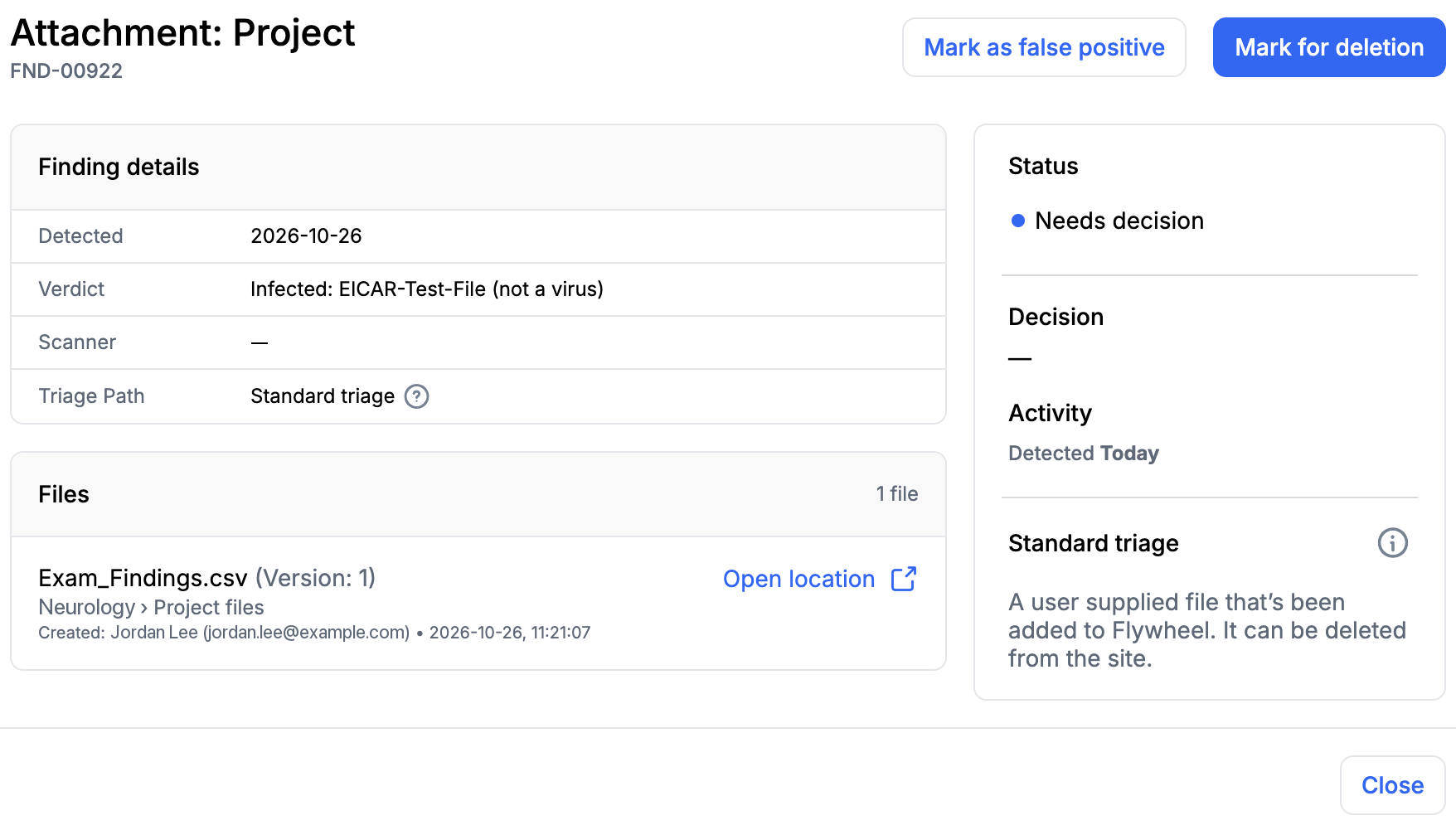
Click a finding to open its details:
- Finding details shows when the file was detected, the verdict the malware scanner reported, and the triage path.
- Files lists each file in the finding, with its version, its location, and who created it. Click Open location to open the container that holds a file. Removed files show Deleted.
- Status, Decision, and Activity show the finding's current state and its history, including decisions and deleted files.
If you can view the finding but not record decisions, the finding shows a Read only access label.
Record a Decision
- Open the finding.
- Click one of the following:
- Mark as false positive: The file is not malicious and stays on the site.
- Mark for deletion: The file should be removed from the site.
Flywheel records the decision with your name and the time. Recording a decision does not delete any files. To remove files marked for deletion, see Remove Files Marked for Deletion.
Reverse a Decision
To change a decision, open the finding and click Reverse decision. The finding returns to Needs Decision, and you can record a new decision. You can reverse a decision until the finding's files are removed.
Troubleshooting
Malware Triage does not appear in the Admin section: Storage malware scanning is not enabled on your site, or you are not a Security Champion, Site Admin, or Project Admin.
The finding shows Read only access: Only users with the Security Champion role can record decisions. Ask a Site Admin to assign you the role.