Access Logs
Introduction
Flywheel recognizes that research subject data can sometimes contain Personal Identifying Information (PII) or even Protected Health Information (PHI)and that such use cases include obligations to be able to audit who did what and when on the Flywheel system.
The Flywheel Access Log feature provides the user access auditing capability, by keeping a record of what users took specific actions and when.
This Access Log can be filtered and exported by users assigned a Site Admin role. Service accounts and device integrations that hold Site Admin privilege can also read the report through the API.
Note: This feature is intended as a user access auditing tool with group/project/subject record specificity. Other Flywheel features (such as de-id logging) are intended to provide more granular change logging of data in Flywheel.
This document will provide numerous instructional steps and information such as Interface, Retention, How to Generate a Report and Additional Steps to Administer Flywheel.
Instruction Steps
Interface
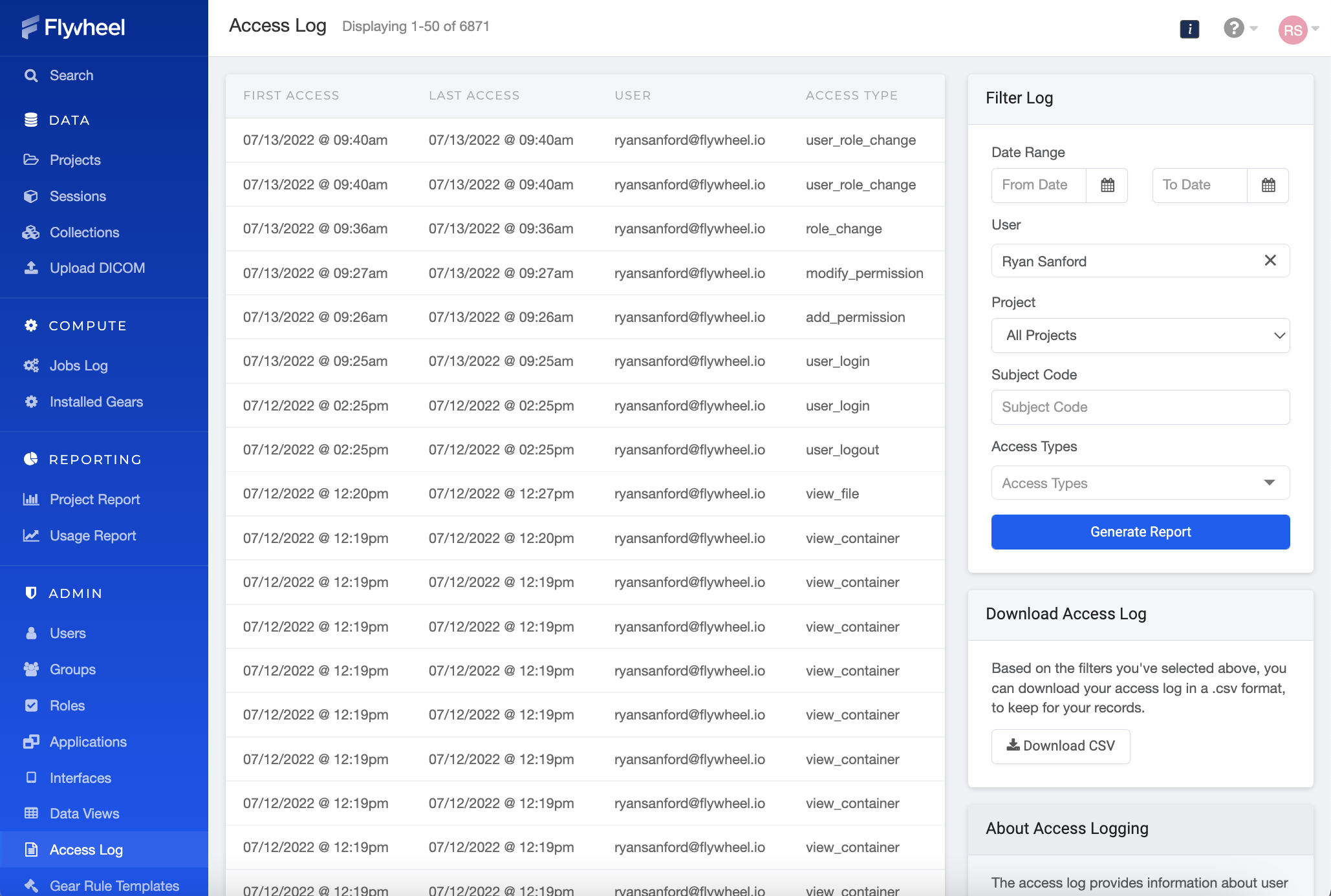
The Access Log groups recorded events into one row per clock hour. Two actions collapse into the same row when they share the same user, access type, and target. For events on data, the target is the subject record, so actions on different sessions or acquisitions belonging to the same subject are grouped together.
Grouping is by clock hour, not by elapsed time. A user who downloads files from 10:55 to 11:05 produces two download_file rows, one for the 10:00 hour and one for the 11:00 hour. A user who downloads continuously from 10:05 to 10:55 produces a single row. Because one row can represent many actions, the number of actions is not shown on the Access Log page; it is available as the count column in the downloaded CSV.
Events that are not tied to a subject record group differently. Login and logout events group by user, role_change groups by the custom role and the set of actions it grants, and permission events group by project, target user, and the set of roles assigned.
Records identify the subject that was accessed, not the specific container beneath it. A view_container entry tells you which subject a session or acquisition belonged to, but not which session or acquisition it was.
Flywheel hierarchy labels are captured when a record is first created and are never updated. If a subject, project, or group is renamed later, existing records keep the label that was in effect at the time of access, and the subject filter matches that historical label.
The Access Log report contains the following information. More detail is available when choosing to download.
| Field Name | Description |
|---|---|
| First Access | Timestamp of the first action for the hour period, localized to the current browser timezone |
| Last Access | Timestamp of the last action for the hour period, localized to the current browser timezone |
| User | The ID of the user or service that performed the action. For user accounts, the user ID commonly matches the user's email address |
| Access Type | The action that was performed |
List of Access Types:
| Name | Description |
|---|---|
| delete_analysis | Deleted an analysis record. |
| delete_container | Deleted a subject, session, or acquisition record. |
| view_container | Viewed details of a session, acquisition, or analysis record. Project, group, and collection views are not recorded. |
| view_subject | Viewed details of a subject record |
| delete_file | Deleted file |
| download_file | Downloaded or viewed file contents |
| file_moved_away | Moved file between subjects (source subject) |
| file_moved_in | Moved file between subjects (destination subject) |
| container_moved_away | Moved a session or acquisition between subjects (source subject) |
| container_moved_in | Moved a session or acquisition between subjects (destination subject) |
| replace_file | Replaced file contents with a new version |
| view_file | Viewed details of a file |
| sync_to_external | Exported data to an external storage provider via the Project Export feature. |
| view_job | Viewed details of a job (gears). |
| view_job_logs | Viewed logging output of a job (gears). |
| delete_annotation | Delete measurement set of a reader task. |
| view_annotation | Viewed measurement set of a reader task. |
| delete_form_response | Delete contents of a completed viewer form. |
| view_form_response | Viewed contents of a completed viewer form. |
| add_permission | Assigned a project role to a user |
| modify_permission | Changed or removed a user's assigned project role |
| role_change | Modified a custom project role |
| user_role_change | Modified a user's site role (User, Developer, Site Admin) |
| user_disabled | Disabled a site-level Flywheel user account, or created one in a disabled state |
| user_enabled | Enabled or created site-level Flywheel user account |
| user_delete | Soft deleted a site-level Flywheel user account |
| user_login | User login event |
| user_logout | User logout event |
Note
Soft deleting a user records more than one entry. Flywheel adds a user_delete entry for the deletion itself, and a modify_permission entry for each project the user is removed from. A single deletion therefore produces one row per affected project in addition to the user_delete row.
What Is Not Recorded
The Access Log records user access to subject-level data. The following activity does not generate Access Log entries:
- Actions performed by gears, jobs, and devices. Activity originating from a gear run, a job, a gear rule, or a device integration is not recorded, even when it reads or modifies subject data. Use the Audit Trail or a job's provenance to review that activity.
- Access at the project, group, or collection level. Only subject, session, and acquisition records, and the files, analyses, jobs, annotations, and form responses beneath them, generate entries.
- File moves within the same subject. Moving a file between sessions or acquisitions that belong to one subject is not recorded. file_moved_away and file_moved_in are recorded only when a file crosses a subject boundary.
Retention
The Flywheel system retains the Access Log records indefinitely.
Generate a Report
Filtering the contents of the Access Log is recommended, because viewing and downloading is limited to the first 10,000 matching records. An export containing all results can be provided by contacting support@flywheel.io
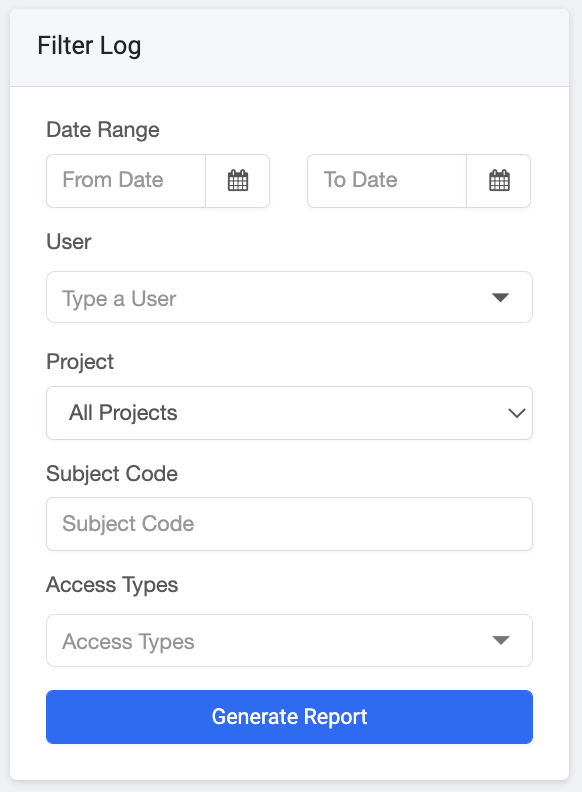
Once you have generated the report, download the results as a CSV file. The CSV file includes additional information, such as Flywheel hierarchy labels and IDs, which are not exposed on the Access Log page.
Fields in the CSV Report
| Field | Description |
|---|---|
| error | Populated only when a record could not be read. The row is emitted with this note and no other values. |
| access_type | The action that was performed |
| context.group.id | ID of the group containing the accessed record |
| context.group.label | Label of the group, as it was at the time of access |
| context.project.id | ID of the project containing the accessed record |
| context.project.label | Label of the project, as it was at the time of access |
| subject.id | ID of the subject that was accessed |
| subject.label | Subject code, as it was at the time of access |
| origin.id | Identifier of the user or service that performed the action – the email address for standard user accounts |
| origin.type | The type of identity the action originated from – user/user_workspace/system/task/unknown |
| count | Number of actions represented by the row |
| first_access | Date & Time of the first action in the hour, in UTC |
| last_access | Date & Time of the last action in the hour, in UTC |
| role_id | role_change only – ID of the custom role that was modified |
| role_ids | Permission events only – the roles held by the user after the change, empty when the permission was removed |
| user_id | Permission and user management events only – the user that was acted on |
| actions | role_change only – the set of actions the custom role grants after the change |
| user_role_type | user_role_change only – the site-level roles assigned to the user after the change |
Not every column applies to every event. Events on data populate the group, project, and subject columns. Permission events populate group and project, but leave subject empty. Events that are not tied to a project, such as login, logout, custom role changes, user deletion, and user enable or disable, leave all three empty.
Timestamps in the CSV are in UTC, while the Access Log page localizes them to your browser's timezone.
Additional Steps to Administer Flywheel
Now that basics are obtained, below are some next steps for administering Flywheel:
- Importing data overview
- Flywheel + BIDS: How to start
- Add collaborators from other institutions to your Flywheel site