Configure Data Processing Rules
The DICOM Router's data processing rules decide where each study it receives is stored in Flywheel: which group and project the study goes to, and how its subject, session, and acquisition labels are set. Site Administrators edit the rules in the Flywheel web app or with the New CLI (flyw).
The rules are a single import rule set dedicated to the DICOM Router. They use the same YAML syntax as Bulk Import rule sets and rule files, with the differences described on this page.
Before you begin
- You need Site Administrator access to the Flywheel web app.
- Create each destination group and project in advance. The DICOM Router does not create them, and a study whose destination is not found goes to a fallback project. See How studies are routed.
- To route by sending device or by destination, note the AET of each authorized device and the DICOM Router's own AETs. Both are listed on the Manage Connections page.
Edit the data processing rules
- In the Flywheel web app, go to Interfaces → Connector to open Connector Details.
- Select Configure Data Processing Rules. A YAML editor opens with the current rules.
- Edit the rules. The editor marks YAML errors as you type, and Save is unavailable until you fix them.
- Select Save. When Flywheel accepts the rules, the editor closes and a Rules Updated. message appears. If Flywheel rejects them, the error appears at the top of the editor.
To discard your changes, close the editor without saving.
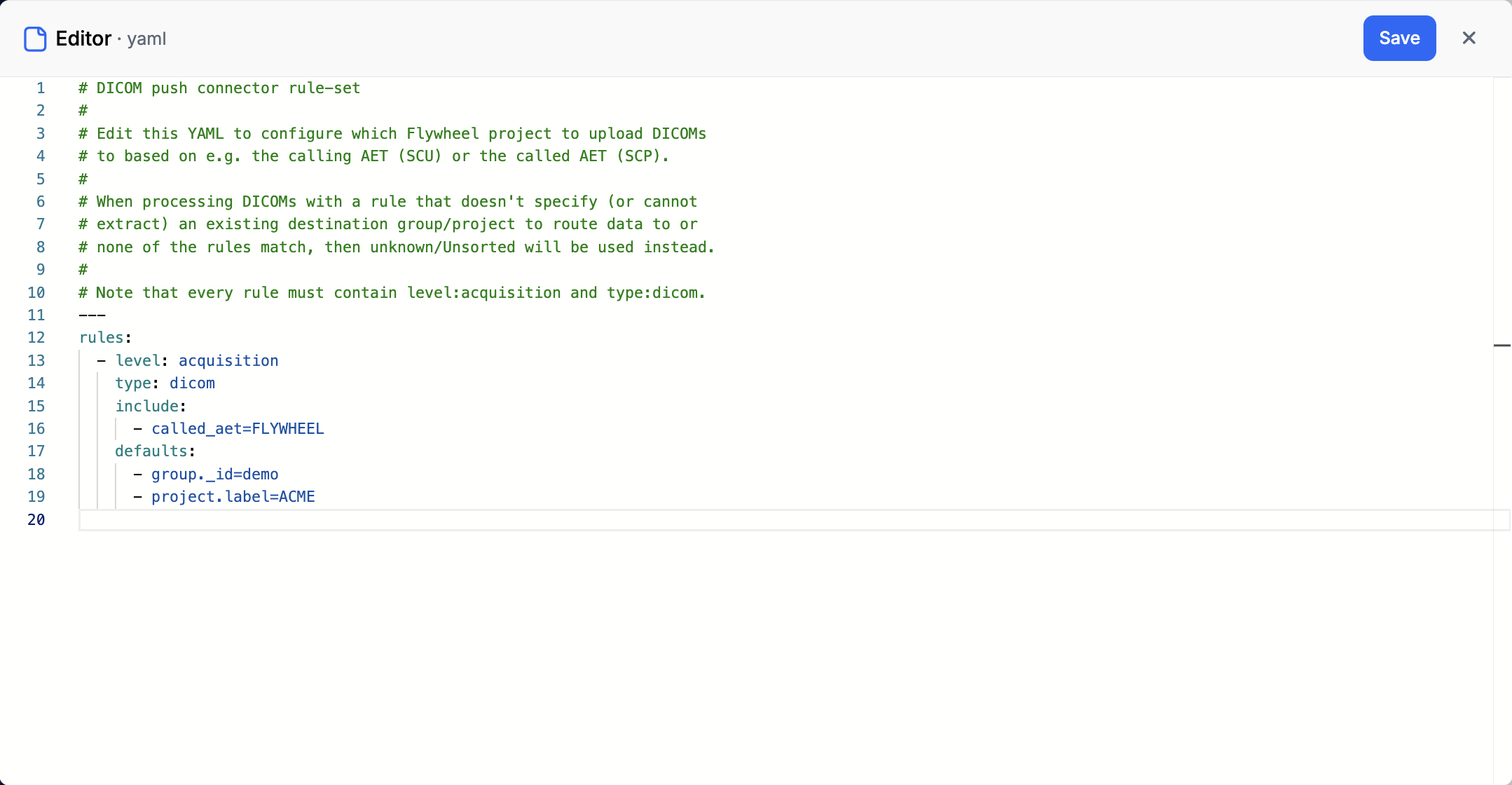
Default rules
Until you change them, the DICOM Router uses these built-in rules. The editor also shows comments that explain them.
The default rule sends studies addressed to the FLYWHEEL AET to the Unsorted project in the Unknown group. Studies that match no rule also go there, so until you add your own rules, every study the DICOM Router receives lands in the Unsorted project. To return to these rules later, restore the defaults with the New CLI.
Write rules
Each entry under rules: is one rule. The DICOM Router checks the rules in order and applies the first rule whose filters match the study. Place more specific rules before general ones.
Required settings
Every rule must include level: acquisition and type: dicom. The DICOM Router is built to transfer DICOM studies: everything it receives is DICOM, and it stores each series as a DICOM archive in an acquisition. Without type: dicom, a rule also cannot map values from DICOM headers or from the AET fields.
Filter studies
The include and exclude filters work as they do in Bulk Import: a rule matches when at least one of its include filters matches (or it has none) and none of its exclude filters match. Values are compared without regard to case. A filter on a DICOM attribute that the study does not contain does not match.
Unlike Bulk Import filters, DICOM Router filters can use DICOM attributes. Bulk Import applies its filters to files in storage before it reads them, but the DICOM Router applies its filters after it receives the first image of each series, so that image's header is available.
Filters can use only the fields in the following table. File-system fields such as path, name, and size are not available, because the DICOM Router receives DICOM over the network rather than reading files from storage. Instance attributes come from the first image the DICOM Router receives for the series.
| Field | Description |
|---|---|
calling_aet | The AET of the device that sent the study: the AET of an authorized device on the Manage Connections page |
called_aet | The DICOM Router AET that the study was sent to. See Manage the DICOM Router's AETs. |
| Study attributes | StudyInstanceUID, StudyDate, StudyTime, StudyDescription, StudyID, AccessionNumber, ReferringPhysicianName, ModalitiesInStudy |
| Patient attributes | PatientID, PatientName, PatientBirthDate, PatientBirthTime |
| Series attributes | SeriesInstanceUID, SeriesDescription, SeriesNumber, Modality |
| Instance attributes | SOPInstanceUID, SOPClassUID, InstanceNumber, NumberOfFrames |
Filter on Modality, not ModalitiesInStudy
Devices usually leave ModalitiesInStudy out of the images they send, so a filter on it rarely matches. Filter on Modality instead.
For the available operators and wildcard patterns, see the Pattern Syntax Reference.
Route studies to a project
A rule sets its destination with two fields:
group._id— the ID of the destination groupproject.label— the name of the destination project
Set them to fixed values in defaults or overrides, or derive them from the study in mappings. Values in defaults and overrides are used exactly as written and cannot reference fields such as {called_aet}. To build a value from the study, use mappings. For example, this rule stores each study in the project whose name matches the AET it was sent to:
Always set group._id as well as project.label. See How studies are routed for what happens when either one is missing or does not match.
Set subject, session, and acquisition labels
By default, the DICOM Router derives subject, session, and acquisition labels from the DICOM headers, using the same DICOM header mappings as Bulk Import. To change them, add mappings that reference DICOM attributes, calling_aet, or called_aet. Mappings can reference any DICOM attribute, not only the fields available to filters. For mapping syntax, see Mapping Files to Flywheel Hierarchy.
To set the names of individual DICOM files inside each archive, use dicom_instance_name, as described in Configuring Individual DICOM File Names.
Settings that do not apply
The DICOM Router uses only the rules list, and only some rule settings:
- Job-level options such as
conflict_strategy,fail_fast,uid_scope, andlabelare accepted but have no effect. Imports from the DICOM Router always use the default import settings. scan_paramsis not allowed.- The packaging settings
group_by,zip,dicom_group_by, anddicom_split_localizerhave no effect. The DICOM Router files each image it receives under its series as the image arrives, then starts an import with its own fixed settings that zips each series into one.dicom.ziparchive. Bulk Import needs these settings to group files it finds in storage, but the DICOM Router has already grouped the images by series. - Leave
zip_singleunset. Setting it tofalsedoes not stop the DICOM Router from zipping a series; it only removes the.dicom.zipextension from the archive name.
The rules, including comments, can be at most 8,192 characters.
How studies are routed
The DICOM Router routes each study as a whole. It picks the destination project from the first series it receives for a study, and every later series of that study follows it. A rule that filters on a series attribute, such as Modality or SeriesDescription, therefore cannot split one study across projects.
To find the destination, the DICOM Router looks up the group and then the project:
- If no group matches
group._id, or the matching rule sets none, the study goes to the Unknown group (unknown). - If no project in that group matches
project.label, or the matching rule sets none, the study goes to that group's Unsorted project, which is created if it does not exist. - A study that matches no rule goes to the Unsorted project in the Unknown group.
A Site Administrator can move sessions out of an Unsorted project to the correct project. See What is the Unknown Group and Unsorted Project?
These fallbacks follow the Legacy DICOM Connector's container creation rules, except that the DICOM Router never creates a project other than Unsorted.
Use exact group IDs and project names
Group IDs and project names are matched approximately, without regard to case. An exact match always wins, but when no group or project has the exact name, one with a similar name can receive the study. For example, a rule for project Study A can route studies to project Study B if Study A does not exist. Create each destination before you add a rule for it, and copy its group ID and project name exactly.
Rules and de-identification
De-identification happens after the rules choose the destination project, not before. The DICOM Router uses the destination project's de-identification profile, so it cannot de-identify a study until it knows where the study is going. For the first image of each series, the DICOM Router:
- Evaluates the rules against the headers as the device sent them, and chooses the destination project.
- De-identifies the image with the destination project's profile. Every later image in the series is de-identified the same way.
- Evaluates the rules again against the de-identified headers, to set the subject, session, and acquisition labels.
As a result, filters and the destination project see the original header values, while container labels use the de-identified values. If a label is mapped from an attribute that the profile removes or replaces, the label shows the de-identified value.
Be careful filtering on attributes that the profile de-identifies
Because the rules run a second time against the de-identified headers, a filter on an attribute that the profile removes or replaces, such as PatientName or StudyDescription, can match differently on the second pass. The study still goes to the project that the original values chose, but its subject, session, and acquisition labels can come from a different rule's mappings, or from the default DICOM header mappings if no rule matches. Where you can, filter on values that de-identification does not touch: calling_aet and called_aet, which are not part of the DICOM header, or attributes such as Modality that your profile keeps.
When changes take effect
Flywheel checks the rules when you save them, and rejects rules with invalid YAML or a filter field that is not supported. Saved rules take effect for connections that devices open after you save. A study that the DICOM Router has already started receiving keeps the destination it was assigned.
Examples
Route by sending device
Send everything from one scanner to its own project:
Route by study description, with a group-level catch-all
Send cardiac studies to one project, and every other study to the Unsorted project in the same group:
The second rule has no filters, so it matches every study that the first rule does not. Because it sets no project.label, those studies go to the Unsorted project in the cardiology group instead of the Unsorted project in the Unknown group.
Route by destination AET and set labels
Give each DICOM Router AET its own project, and label sessions by study date and description:
Each AET must be added to the DICOM Router and to the sending device. See Manage the DICOM Router's AETs.
Manage the rules with the New CLI (flyw)
Site Administrators can also view, replace, and restore the rules with the New CLI. Restoring the built-in default rules is available only in the CLI. These commands require flyw 0.34.0 or later.
The DICOM Router's rules do not appear in the Import Rule Sets list, and the flyw import rule-set commands cannot view or change them.
Related pages
- Manage Connections — authorize devices, manage the DICOM Router's AETs, and monitor activity.
- Import and Export Rule Sets — managed rule sets for Bulk Import and Bulk Export.
- Rule Files — the YAML rule syntax shared with Bulk Import.
- Pattern Syntax Reference — operators and patterns for filters and mappings.
- DICOM Router — overview of DICOM Router and inbound DIMSE C-STORE.