Flywheel Core 23.0
23.0.0
BREAKING CHANGES
Data Transfer
Legacy CLI (fw) must be updated to 23.0.0
Legacy CLI (fw) versions earlier than 23.0.0 cannot sign in to a Flywheel 23.0.0 site or run commands against it. These versions request the site configuration without sending the user's API key, and the /api/config endpoint now requires authentication. After the site upgrades to 23.0.0, users must update the Legacy CLI to version 23.0.0. The New CLI (flyw) and the Python SDK are not affected.
Fail-fast is an on/off setting
The fail-fast setting for Bulk Import and Bulk Export is now an on/off setting, and it is off by default. When it is on, an import or export stops at the first file that fails, with the error Aborted due to fail_fast. When it is off, an import or export processes every file, even if some of them fail. Previously, the setting took a number or percentage of failed files, and imports and exports stopped by default after 5% of their files failed.
Flywheel converted the fail-fast setting of existing imports, exports, schedules, and rule sets during the upgrade:
- A threshold of
0or0%is now off. - Any other threshold is now on, so these imports and exports now stop at the first file that fails.
In the New CLI (flyw), the --fail-fast option of the flyw import run, flyw import schedule create, flyw export run, and flyw export schedule create commands no longer takes a value. Use --fail-fast to turn the setting on, or --no-fail-fast to turn it off. Commands and scripts that pass a value, such as --fail-fast 5%, fail and must be updated.
This change also fixes an issue where a local import with a percentage threshold, such as --fail-fast 100%, could stop before scanning all files and report the error Reached failure threshold 100%.
Data Management
Config and version APIs require authentication
The /api/config and /api/version endpoints now require authentication, and reject unauthenticated requests with a 401 Unauthorized response. Integrations that call these endpoints directly without an application programming interface (API) key, such as monitoring and health-check systems, must send a User API Key or a Device API Key with each request. See the change notice.
Gears and Compute
Gear output classification validation is enforced
Gear jobs now fail when a gear sets classification values on an output file that do not match the classification schema. Previously, these jobs completed, and the job log recorded only a warning. The job log now records an error in this format:
Error: Job failed because file "<file name>" has an invalid classification: The following aspect keys do not adhere to the classification schema: [<invalid keys>]
Gear developers must update any gear that sets classification values on its output files so that it uses only values defined in the classification schema. See the change notice and the Flywheel classification scheme.
Podman is the default container engine
The Flywheel engine now uses Podman as its default container engine, so gear jobs run in Podman containers by default. Gears that run in Podman containers no longer run with root privileges on the host machine: the root user inside a gear container now maps to an unprivileged user on the host, which improves the security of gear execution.
Viewers
IO-Proxy restricts cross-origin requests
IO-Proxy now restricts cross-origin requests by default. A cross-origin request comes from a browser-based application at a different web address than the Flywheel site. IO-Proxy accepts these requests only from addresses on the site's allow list, so requests from custom applications at any other address now fail. See the change notice.
FEATURES
Data Transfer
Bulk Import
Bulk Import manifest files now support a wildcard (*) at the end of a src_path value, so one row can set the labels and metadata for every file in a folder, such as all the DICOM files of a series, without listing each file individually. For example, foo/bar/* matches the files directly in the foo/bar folder, but not files in its subfolders, and * matches all files at the top level of the source location. A row with an exact file path takes precedence over a wildcard row. Bulk Import does not support wildcards in any other position in a src_path value, and ignores rows that contain one. See Bulk Import - Manifest Files.
Bulk Import can now re-import existing files by reference, so customers can change where a file's data is stored without deleting and recreating the file in Flywheel. For example, after moving their data to a data lake, customers can re-import it with reference-in-place import, so that Flywheel references the files in the data lake instead of storing its own copies. Bulk Import now treats a re-imported file as changed when the new import stores it differently from the existing file, by reference instead of as a copy or the reverse, even when the file content is unchanged. Previously, Bulk Import skipped these files as up to date. With the update conflict strategy, Bulk Import records the new storage location as a new version of each file. Bulk Import also now offers the force_update conflict strategy, which writes a new version of every re-imported file, even when nothing about the file has changed. Users can select a conflict strategy with the --conflict-strategy option of the New CLI (flyw) or with conflict_strategy in an import rule set, so scheduled and unattended imports can use it.
The import audit report now shows whether each imported file was added as a new file or replaced an existing file as a new version. The report's status column shows created for a new file and replaced for a new version of an existing file, instead of success for both. This makes it easy to spot, for example, several source files that map to the same destination file, where each later file replaces the earlier one. The report also includes a new size column with the size of each file.
Case Uploader
The Case Uploader Subject dropdown now always shows an Add New Subject option at the top of the list, so users can see that they can create subjects during an upload. Selecting the option opens a dialog where the user enters a subject label of 1 to 64 characters that does not contain a backslash (\) and does not match an existing subject label. After the user selects Add Subject, the Case Uploader selects the new subject and creates it in the project when the upload starts. If the Case Uploader cannot create the subject, it displays an error and does not start the upload.
Legacy DICOM Connector
The Legacy DICOM Connector now abandons a series that it has not delivered to Flywheel within 3 days of first detecting it, instead of continuing to retry it. The period is configurable, and Flywheel Support can change it for a site. Depending on how the connector receives data, it also deletes abandoned series from its local DICOM store.
User Authentication
On sites configured for National Institute of Standards and Technology (NIST) environments, the Web App now displays a system use notification each time a user visits the site. Users must acknowledge the notification before they can continue. This aligns with NIST Special Publication 800-53 Revision 5 guidelines for system use notification.
Site Administration
Malware Scanning for All New Files
Limited Availability
In 23.0.0, malware scanning for all new files is available only for sites hosted on Amazon Web Services (AWS). It relies on cloud-native malware scanning capabilities, which increase hosting costs, and Flywheel enables it only on request. Interested customers should contact their Sales representative or Flywheel Support.
Flywheel can now scan every new file added to a site for malware. This scanning is separate from malware scanning during Bulk Import, and Flywheel intends it to eventually replace Bulk Import scanning. Until then, Bulk Import continues to scan files during import as before. The new scanning differs from Bulk Import scanning in three ways:
- Coverage: It checks files however they are added, including ad hoc uploads and gear outputs. Bulk Import scanning checks only files imported with Bulk Import.
- Response: It scans each file in the background after Flywheel stores the file, then reports any finding without blocking or deleting the file. Bulk Import scanning rejects files that fail the scan before they reach Flywheel.
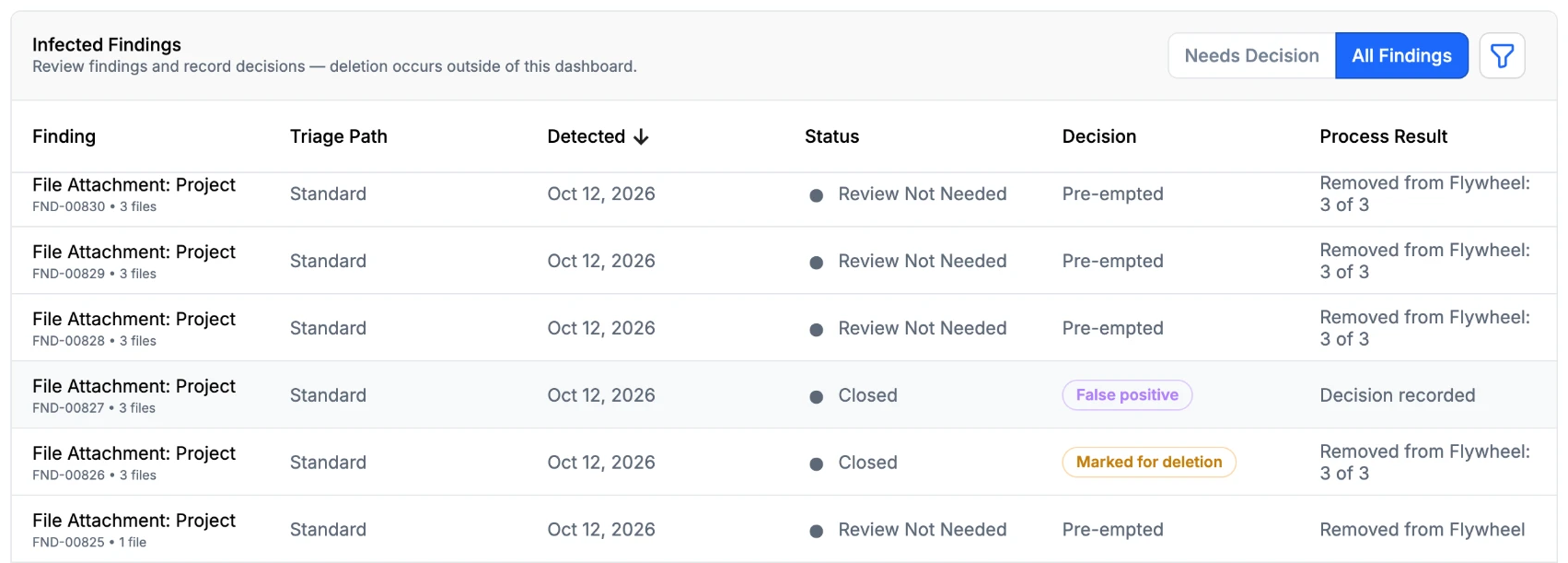
- Review: Site administrators designate Security Champions on the Admin Users page, and Flywheel emails them about new findings. Security Champions record a
False positiveorMarked for deletiondecision for each finding on the new Malware Triage page. Bulk Import scanning reports results in the import audit report.
The new scanning supports the malicious code protection control (SI-3) in NIST Special Publication 800-53.
Access Logging
Access Logging now records an outcome of granted or denied for each event, so site administrators can audit denied access attempts alongside granted access. Flywheel records denied events for authenticated requests at the same scope as existing Access Log events. Requests that list items do not record denied events for items omitted from the results because the user lacks access. The Access Log report API and the downloaded comma-separated values (CSV) file include the outcome for each entry. Entries recorded before this change appear as granted. When the Access Log groups events into hourly rows, it keeps granted and denied events in separate rows.
Security Hardening
The snapshot and IO-Proxy services no longer publish their API documentation pages (/snapshot/docs, /snapshot/redoc, /io-proxy/docs, and /io-proxy/redoc) or their API specification files (/snapshot/openapi.json and /io-proxy/openapi.json). Previously, anyone who could reach a site could open these addresses without signing in. They now return a 404 (not found) response.
Tasks Manager
Protocol Builder
Available on request
The Protocol Builder is available on request. Interested customers should contact their Sales representative or Flywheel Support to enable it on their site.
Protocol administrators can now build reader task protocols in a guided, step-by-step Protocol Builder instead of editing protocol JSON. The builder walks through general settings, labels and viewer configuration, the form, and a final review before publishing. The viewer configuration step sets whether the file browser is available, and whether it is scoped to the session or the subject. Administrators can attach an existing published form, or create and update one without leaving the builder, and can compare form versions side by side. They can also configure a double-read and adjudication workflow. Published protocols appear in the Protocols list and are available for creating tasks in Tasks Manager. This reduces the effort and errors involved in setting up multi-reader studies.
Forms
The Form Builder now supports forms designated for upload. Site and group administrators can author, version, and publish the forms that upload workflows will collect from uploading sites. Upload forms follow the same draft, publish, and versioning lifecycle as reader task forms. Each submitted response is validated, attributed to the user who submitted it, and stored as an immutable record linked to the form version used. Group forms can now be filtered by group. Collecting upload forms in the Case Uploader will be available in an upcoming release.
Gears and Compute
Jobs
Users can now open a job directly from a link that appears when the job is scheduled successfully. The link opens the job's Log view, so users can confirm the job started as intended without searching, filtering, or sorting the job list. The Log view now refreshes its log data automatically every 5 seconds and displays a loading indicator while the job has not finished. The link remains available after the confirmation message is dismissed or times out, and it continues to work after the job completes or fails.
The Jobs page now includes a Scheduled job state that users can filter by, and that appears anywhere other job states appear. Flywheel shows the Scheduled state on a job only on sites where next-generation compute is deployed. Each job state now has a unique icon shape, so the Provenance tab no longer relies on color alone to distinguish Pending from Running. Job state icons on the Provenance and Analyses tabs now match the Jobs page, and every icon includes a text label that screen readers announce and that appears on hover.
Engines
The Flywheel engine now supports authenticating with a device key as an alternative to the shared drone secret. Administrators can configure an engine with a device key for connecting to Flywheel and accessing the gear image registry, so the engine no longer needs the drone secret. Engines that use the drone secret continue to work.
Non-static engines now have a default maximum lifespan of 15 days. Previously, only static engines had a default maximum lifespan, which was 24 hours. Limiting how long these engines run allows security updates and newly generated keys to take effect on a regular schedule.
The engine's diagnostic and monitoring interfaces now require authenticated access, reducing the exposure of internal system details to unauthorized parties.
Viewers
Flywheel now publishes its viewer applications to a dedicated domain, flywheel-cdn.io, which is separate from the domain used by most Flywheel sites, to strengthen security.
V3 Viewer
Performance improvements
This release brings performance and reliability improvements that were also delivered across the 22.4 and 22.5 patch releases. These improvements to the backend service that sends images to the V3 Viewer result in:
- Faster loading times: Images load faster, especially when users open several series at a time.
- More reliable image loading: These changes prevent situations where the backend service could no longer send images to the viewer, and images failed to open.
ETDRS grid
Study administrators can now customize the Early Treatment Diabetic Retinopathy Study (ETDRS) grid in the V3 Viewer for a project or read protocol, to match the requirements of their study. Administrators can choose between a Standard size preset (1/3/6 mm for the diameters of the grid's circles) and an Extended size preset (1.2/3.6/7.2 mm), and decide whether to show or hide the foveal avascular zone (FAZ) reference circle.
HTML Viewer
JavaScript execution within HTML files is now supported within the HTML Viewer with the addition of enhanced security measures.
For example, the "Provenance Information" and "Extracted Image Quality Metrics (IQMs)" dropdown sections in quality assurance (QA) reports from the MRIQC gear now display their information after a user allows scripts.
Manual step required to run scripts
For security, the HTML Viewer runs a file's scripts only after a user allows them. When a file contains scripts, the viewer displays an Allow Javascript button next to the file name. Until a user selects it, content that depends on scripts does not work, such as expandable sections and links that jump to another part of the page. The choice is not saved, so users must select the button each time they open the file. Users should allow scripts only for files from trusted sources.
FIXES
Data Transfer
- Fixed an issue where a platform restart, such as during scheduled maintenance, could cause an in-progress Bulk Import or Bulk Export operation to fail instead of resuming. An operation that cannot resume after three attempts stops with the error
Operation aborted after 3 failed resume attempts.
Bulk Import
- Fixed an issue where Bulk Import organized ZIP files of DICOM data that contained nested folders under unexpected subject, session, or acquisition labels. Path mappings now apply to the path of the ZIP file rather than to the folders inside it.
- Fixed an issue where a Bulk Import of a storage folder containing zipped DICOM files caused the import details page to report incorrect subject, session, and acquisition counts under Impacted Containers.
- Fixed an issue where Bulk Import could run out of memory and fail when it contained a DICOM series with thousands of files, during dry runs and when re-importing the series.
- Fixed an issue where Bulk Import could not read the DICOM headers of some Hologic digital mammography files, such as unprocessed ("For Processing") files, and reported errors for them.
Bulk Export
- Fixed an issue where an export could fail to start with a
No such snapshoterror. Exports downloaded to a local computer, whether started from the Web App or the New CLI (flyw), could also fail with aNo such bloberror or finish with files missing from the download. - Fixed an issue where the export audit report could leave the destination path blank when Flywheel retried a file during an export downloaded to a local computer.
- Fixed an issue where the panel at the bottom of the page that tracks local exports could offer a cancel option when no exports were in progress.
DICOM Router
- Fixed an issue where the DICOM Router stored images without de-identification, and reported success to the sending device, when it could not load the project's de-identification profile. The DICOM Router now rejects each image in this situation with the DICOM status
0xA700(Refused: Out of Resources) and does not upload it, so the sending device can send it again. - Fixed an issue where the original study description and DICOM unique identifiers (UIDs) appeared in import records, such as the Study Description column of the Connector Activity table, and in file names, even when the destination project's de-identification profile removed or replaced them. The DICOM Router now uses the de-identified values in these places instead.
- Fixed an issue where the DICOM Router could route a study to the project chosen by one data processing rule, but set the subject, session, and acquisition labels of some of its series from a different rule or from the default DICOM header mappings. This could occur when rules filtered on series-level attributes, such as
SeriesDescription, or on attributes that the destination project's de-identification profile removes or replaces, such asPatientName. The DICOM Router now matches one rule for each study, using the original headers of the first image it receives, and applies that rule to every series in the study, including series that arrive over a later connection. As a result, rules can no longer apply different label mappings to different series of the same study. - Fixed an issue where the DICOM Router reported a successful transfer to the sending device but did not import the study when a data processing rule specified a project ID that does not exist, so the device had no reason to resend it. The DICOM Router now imports these studies into the
Unsortedproject of theunknowngroup. - The connector configuration interface now validates Application Entity Titles (AETs) as they are added. Previously, it accepted AETs that DICOM does not allow, such as titles longer than 16 characters or titles containing a backslash or a control character. Invalid AETs are now rejected with an error message, and an AET that has already been added is not added again.
Legacy DICOM Connector
- When an Enhanced DICOM series failed slice-count validation, the Legacy DICOM Connector always retried it twice before falling back to classic DICOM validation, which delayed the transfer of that series to Flywheel and made its logs difficult to read. The number of retries is now configurable, with a default of 3, and the connector can also be configured to skip Enhanced DICOM slice-count validation and use classic DICOM validation directly. Flywheel Support can change these settings for a site.
New CLI (flyw)
- Removed the deprecated top-level
flyw loginandflyw logoutcommands, so theis not one oferror message for an unrecognized command no longer lists them as valid choices. Useflyw auth login,flyw auth status, andflyw auth logoutinstead. - Fixed an issue where starting an import from local storage with the New CLI (
flyw) could fail immediately with the errorNo such import: <import_id>, even though the import had been created and continued processing in the background. - Fixed an issue where starting an export with the New CLI (
flyw) could fail with the errorNo such export: <export_id>. - Fixed an issue where
flyw admin storage createfailed withSSLCertVerificationError: [SSL: CERTIFICATE_VERIFY_FAILED] certificate verify failed: self-signed certificate in certificate chainon sites that use a customer-supplied self-signed certificate or private certificate authority, even when users specified the--insecureor--ssl-certoption. The--insecureand--ssl-certoptions now apply to this command. - Fixed an issue where
flyw admin storage createfailed on Windows with the errorAbsolute fs:// storage path required, even though the--urloption specified a valid absolute path, such asfs:///mnt/data. The command now accepts these paths on Windows. - On Windows, an ampersand (
&) in a New CLI (flyw) argument, such as a storage URL with multiple query parameters in theflyw admin storage createcommand, must be escaped. Otherwise, Windows cuts the argument off at the&and treats the remainder as a separate command, which produces an error such as'gid' is not recognized as an internal or external command, operable program or batch file.In Command Prompt, write^&instead of&, even inside quotation marks. In PowerShell, place the stop-parsing token--%directly afterflyw. - On macOS and Linux, the New CLI (
flyw) now preserves quoted arguments that contain spaces, such as project paths or labels, when it re-runs a command after an automatic update, instead of splitting them into separate words and failing with the errorInvalid argument '<argument>' for command '<command>'. The fix applies only when the automatic update starts from a CLI version that includes it, so updates from earlier CLI versions can still split arguments.
Case Uploader
- Fixed an issue where Case Uploader failed to import a ZIP file containing a DICOM series when the ZIP file also included a non-DICOM file, showing an
Upload Incompletestatus after repeated retry attempts. - Improved the responsiveness of the subject, session, and acquisition dropdowns in Case Uploader when they list a large number of options.
- Fixed an issue where a filter dropdown in Case Uploader continued to display the
No resultsmessage alongside matching results after a user deleted a character from the filter. - Fixed an issue where the user avatar in the Case Uploader header displayed initials from the name supplied by the user's identity provider, so the initials could differ from the name shown in the Web App. The avatar now displays initials from the name in the user's Flywheel profile.
- Fixed a cosmetic issue where the border around an element was partly missing, with uneven spacing, when Case Uploader displayed a de-identification warning.
External Storages
- Fixed an issue where the New Storage Provider dialog showed the Allow Importing and Allow Exporting options as off by default, and created the storage with importing and exporting allowed regardless of the selections.
- Fixed an intermittent issue where the storage configuration interface could hang or appear blank after creating or editing a storage connection, even though the storage check completed successfully. Flywheel also no longer creates a storage connection when its storage check fails, and the Retry Connection button now runs the check again.
De-identification
- Fixed an issue where de-identification could write values for Decimal String (DS) fields, such as
PatientWeight, that exceeded the 16-character limit of the DICOM standard. These values caused problems when viewing the de-identified data in the Viewer. - The Replace and Delete buttons on the De-ID Settings tab no longer appear for users with a group-level Read-Only role.
- Fixed an issue where the De-Identification Profile section of the site, group, and project settings displayed its enabled and disabled states in different styles. Both states now appear as a status label next to the section title.
Data Management
- Fixed an issue where downloading a large session with the Python Software Development Kit (SDK) or the Web App could fail partway through, after some of the data had already downloaded. The connection closed before the download finished, producing errors such as
peer closed connection without sending complete message body (incomplete chunked read)in the Python SDK andFailed to load resource: net::ERR_CONNECTION_CLOSEDin the browser console. - Fixed an issue where users could save a training set to a project without permission to add files to it. The Create ML Data Training Set action in Search now requires the Single File Upload/Create permission on the destination project. Recalculating session template compliance through the API now also requires the Manage Session Templates permission for one project, and site administrator access for all projects at once.
- Fixed an issue where a session-level analysis incorrectly appeared in the Analyses tab of the parent subject after switching to Subject View.
- Fixed an issue where Advanced Search did not return a subject when users filtered by
subject.date_of_birthand selected a start and end date matching that subject's date of birth. - The search endpoint (
POST /api/dataexplorer/search) now accepts only supported search syntax, and rejects requests that contain unsupported query content. - Fixed an issue where turning on Site Admin Mode from the
You don't have access to this projectmessage did not load the project. - Fixed an issue where the field name appeared after the values a user entered in the Tag(s) box, used to add tags to projects, subjects, sessions, acquisitions, and files, and in the Value(s) box of the Advanced Search visual editor. The field name now appears as a label above each box.
Usage Reporting
- The Usage Report shifted the selected date range one day earlier in some browser time zones, which caused the report table to display
Couldn't Load Usage Datawhen users grouped the report by month. The Usage Report now applies the selected date range without shifting it. - Fixed two issues with filters in the Usage Report. The filter button continued to display
2 Filters Appliedafter the Clear button reset the Group and Project filters, and changing the Group kept the previous Project filter applied, which caused the report to return no rows for the new Group.
User Authentication
- Fixed an issue where users whose accounts were disabled stayed signed in. Flywheel now invalidates a disabled user's active authentication tokens, signs the user out of all open browser sessions, and returns each session to the login screen.
- Fixed an issue where the Web App displayed an inactivity message but did not end the user's session after a period of inactivity. The session now ends, and users must sign in again to continue working.
Site Administration
- Resolved an issue that could make Flywheel inaccessible after upgrading to 22.5.1 on sites configured to use Azure Application Gateway.
Gears and Compute
Gear Rules
- Fixed an issue where a Gear Rule started two jobs for the same file when a newly uploaded version replaced the file while the first job was still pending. For gears that take a file as input, Flywheel now cancels the pending job for the replaced version before launching the job for the new version; jobs that are already running continue to run.
- Fixed an issue where the Gear Rule form omitted the Gear Name and Gear Version options for the analysis output container, and displayed them for the next container type selected instead.
Jobs
- Fixed an issue where the Jobs page could fail to load for site administrators on sites with a very large number of jobs, timing out after several minutes. Flywheel now retrieves the job list more efficiently.
- Fixed an issue where filtering the Jobs page by Completed date could take several minutes to return results, causing the page to appear unresponsive.
- Fixed an issue where filtering the Jobs page by multiple priorities did not return the expected results.
- Fixed an issue where running a gear with more than one input file, required or optional, set the output destination to the container of the last-selected input instead of the first-selected input, which could cause gear failures. The output destination now uses the container of the first-selected input.
- Fixed an issue where gears could intermittently fail to start with a
key label is already in useerror when several jobs started within milliseconds of each other.
Compute
- Fixed an issue on Flywheel instances hosted on Amazon Web Services (AWS) where the Condor compute system did not record an error when compute engines failed to start because of problems with AWS Key Management Service (KMS) keys. Condor now logs the failure and marks it as an error.
- Fixed an issue where graphics processing unit (GPU) gear jobs on Azure-hosted Flywheel sites stayed in a pending state and did not run.
Tasks Manager
- The Create Reader Task dialog now displays an inline alert, such as
Missing Manage Task PermissionorNo Project Role, that explains why a task cannot be created in the selected project. Previously, the dialog gave no indication when a missing permission or project role prevented task creation. - Fixed an issue where locked projects did not appear when searching the project selector in the Task Creation dialog. Searching now lists locked projects as disabled options, matching how the full project list displays them.
- Fixed an issue where saving permission changes for a user on the Admin > Users page also removed that user from all of their staffing pools, even when the staffing pools were not edited.
- Fixed an issue that prevented Site Admins from creating forms in groups where they were not assigned a group role. Site Admins can now create forms in any group, whether or not they have a group role.
- Fixed an issue where minimum-length and exact-length validation rules always failed in forms, and maximum-length rules always passed. Form validation in the browser now matches validation on the server.
- Fixed an issue where some read tasks did not display the eye icon in the task list. Read tasks now display the eye icon whether or not they are part of an adjudication task set, and the task details dialog displays the icon for the task type instead of a default icon.
- During automatic refreshes, the Tasks Manager now reloads the reader task list only when tasks have changed, which reduces unnecessary network traffic.
- Fixed an issue where users received a
Failed to save drafterror and could not save a draft or submit a reader task when its measurement set contained no measurements, such as after they deleted all measurements from the set. - Fixed an issue where the Viewer displayed a
Draft Save Failederror and prevented users from saving a reader task draft after they created measurements on a series flagged with theDisplay set has missing position informationwarning.
Legacy Tasks
- Fixed an issue where the viewer did not select an annotation tool when a reader answered a study form question configured with
measurementToolsandrequireMeasurementsbut no labels.
Viewers
V3 Viewer
- Fixed an issue where the V3 Viewer remained in a loading state indefinitely, with no error message, when opening an empty file or a file that contains no valid DICOM data.
- Fixed an issue where the Viewer file browser crashed when a session contained files copied with Smart Copy.
- Fixed an issue where the Link tool options (Scroll, Zoom, Orientation, and Window Level) did not consistently synchronize viewports when users selected them individually or toggled them on and off repeatedly.
- Fixed an issue where the image orientation displayed in a viewport did not match the orientation selected in the Viewport Orientation menu, after switching between different layouts.
- Relabeling an annotation now applies the color configured for the new label.
- Minor design fixes in the viewport orientation menu.
Data Views
- Data Views filters no longer offer the "does not match pattern (regex)" operator (
!~), which caused the filter preview to fail or a saved Data View to return no data. For numeric and date fields, the Data Views, Bulk Export, and Smart Copy filter dialogs now offer only the comparison operators (==,!=,<,>,<=,>=), because pattern matching does not apply to those values.