Fermi, Your AI Assistant
Introduction
Fermi is Flywheel's artificial intelligence (AI) assistant. Ask a question about Flywheel in plain language, and Fermi answers it and links to the documentation behind the answer so you can read further.
Fermi knows how Flywheel works. Use it to get oriented quickly, instead of searching the documentation manually or opening a support ticket.
Do not enter sensitive information
Do not enter personally identifiable information (PII), protected health information (PHI), or confidential information into Fermi. Fermi does not need any of it to answer a question about how Flywheel works.
Fermi responses are not validated
Fermi is provided for informational and productivity purposes only. Its responses are not validated, and must not be relied upon as the sole basis for clinical, regulatory, or other decisions.
Where Fermi Lives
Fermi appears in two places, and they are the same assistant.
Inside Flywheel
The Fermi Chat panel is reached from the assistant icon in the top navigation bar of your own Flywheel site, beside the bookmarks and help icons. It opens alongside your work, so you can get an answer right where you are in the application. Drag the left edge of the panel to widen it when an answer needs more room.
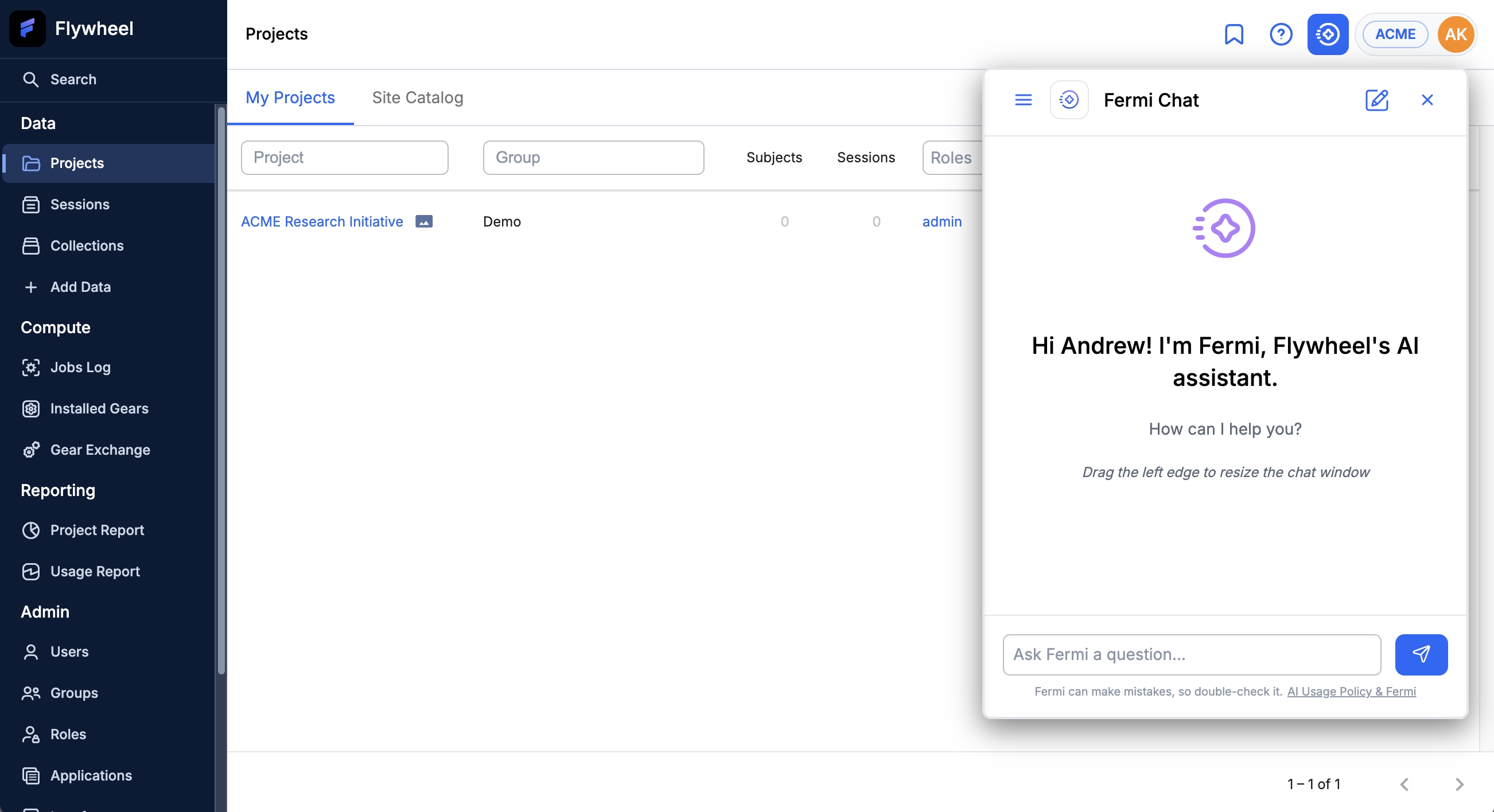
Fermi greets you by name and accepts a question immediately.
On Its Own
Fermi also has a full-page interface at https://chat.flywheel.io, which gives the conversation the whole window and lists your earlier conversations in a sidebar.
That address is the same for everyone, rather than one per Flywheel site.
What Fermi Is For
Fermi was built to:
- Answer questions about how to use Flywheel.
- Help you explore features and workflows.
- Point you to the relevant documentation and support resources.
Flywheel is a broad and capable platform, and Fermi helps you find your way to the part of it you need. Fermi is useful for:
- New users learning core concepts such as ingest, viewers, and gears.
- Experienced users who want help writing scripts, calling the Python software development kit (SDK), building workflows, or evaluating a feature they have not used before.
- Anyone who does not yet know the Flywheel term for what they are trying to do. Describe the goal in your own words and let Fermi map it to the right feature.
Example Questions
- How can I make a gear rule that triggers when two files meet specific conditions?
- What are the different ways users can sign in to Flywheel?
- What is the difference between the V2 viewer and the V3 viewer?
- How can I configure the V3 viewer?
- Can you recommend a gear for extracting DICOM headers?
- My job says it failed. How can I figure out what went wrong?
- Write a Python script that uses the SDK to list my projects and print their names.
Where Answers Come From
Fermi answers from Flywheel's own product documentation, and draws on several pages at once when a question is complex.
Fermi's knowledge is rebuilt each weeknight, so answers track recent changes to the documentation rather than a frozen snapshot.
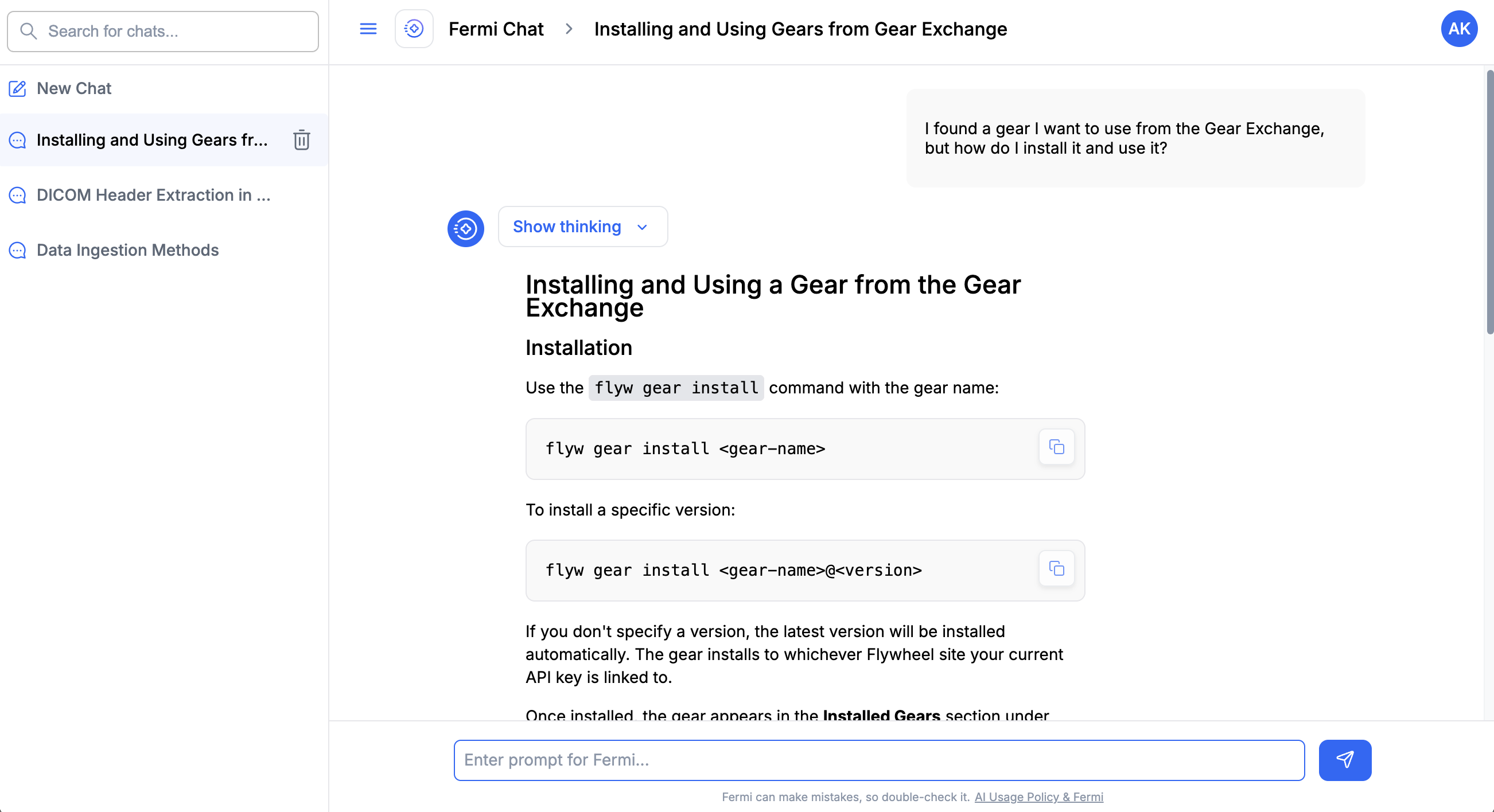
When Fermi has drawn on specific documentation pages, it lists them in a Sources section at the end of the answer, collapsed by default. Expand it to read the underlying pages, listed in order of relevance; each opens in a new browser tab. Not every answer carries one.
Fermi does not write links into the body of its answers. Every link you see in the Sources section was attached from the documentation Fermi actually consulted, rather than composed by the assistant, so the links are reliable.
Each answer is preceded by a Show thinking control. Expand it to see how Fermi worked through your question, which is often the quickest way to tell whether it understood what you meant.
Working with Conversations
Fermi keeps your conversations, so you can return to an earlier question later. The panel menu and the full-page sidebar both list them, with New Chat at the top and a search box above.
- Each conversation is given a topic automatically, based on your first question and Fermi's response.
- You can search your conversations from the Search for chats box, by topic or by what was said in them.
- You can delete a conversation you no longer need.
- You can edit a question you already asked. Editing replaces everything after that point in the conversation, and Fermi answers again from the edited question.
- Answers containing code include a copy button, so you can take a script or command straight into your own environment.
Conversations Stay with Their Site
Your conversations are tied to the Flywheel site where you asked them. If you work across more than one Flywheel site, each site keeps its own conversations, so questions about one study or institution stay separate from another. The full-page interface at https://chat.flywheel.io keeps its own conversations in the same way.
To find an earlier conversation, open Fermi from the same place you asked it.
What Fermi Cannot Do
Fermi is a starting point, not an authority. Keep the following in mind.
- Fermi can be confidently wrong, as any AI assistant can. It is not a substitute for a qualified professional.
- Fermi cannot read from, or write to, the projects and data on your site. It has no access to your site.
- Fermi does not act on your behalf. It answers questions; it does not run jobs, change settings, or move data.
- Fermi is not a general-purpose assistant. It has no access to external resources, and answers only questions about Flywheel.
Every Fermi panel carries the reminder Fermi can make mistakes, so double-check it, next to a link to the AI Usage Policy & Fermi page. That page covers what the assistant is and is not intended for, and is worth reading once.
If you ask something outside what Fermi is for, it declines to answer rather than reporting an error.
Checking Fermi's Answers
Use the Sources links to confirm an answer against the documentation.
Before you act on an answer that affects your data, your workflow, or a decision that matters, verify it against the documentation, or with a person.
Your Data and Privacy
Fermi runs on infrastructure that is entirely separate from your Flywheel site. The models that answer your questions have no connection to your site, and no route to your projects or your data.
Each conversation runs in an isolated session, and the only inputs are the question you type and Flywheel's documentation content.
- Privacy: your conversations, and any feedback you leave, are visible to you and to Flywheel staff.
- Retention: your conversations do not expire, and are kept until Flywheel introduces a retention period.
- Training: your conversations are not used to train the model. Flywheel staff may read the feedback you submit and use it to improve the documentation Fermi draws on, which is how your feedback makes later answers better.
Do not enter sensitive information
Do not enter personally identifiable information (PII), protected health information (PHI), or confidential information into Fermi. Fermi does not need any of it to answer a question about how Flywheel works.
Compliance and Validated Instances
Fermi is available on all Flywheel sites, including Validated Instances.
Because Fermi has no access to system or user data, and cannot modify data, it falls outside Flywheel's software development lifecycle (SDLC) process, and is therefore out of scope for 21 CFR Part 11.
Fermi responses are not validated
Fermi is provided for informational and productivity purposes only. Its responses are not validated, and must not be relied upon as the sole basis for clinical, regulatory, or other decisions.
Giving Feedback
Every response ends with thumbs up and thumbs down buttons, alongside a button that copies the answer. Selecting either thumb opens a Provide Feedback box where you can add a comment explaining what worked, or what went wrong.
Feedback goes to Flywheel staff, and helps improve Fermi over time.
Frequently Asked Questions
Is Fermi free to use?
Yes. Fermi is included with Flywheel at no additional cost.
Who can use Fermi?
Any Flywheel user on a site where the assistant is enabled. Fermi is enabled by default from version 22.4.0 onward, so if you do not see the assistant icon, ask your site administrator whether it has been turned off for your site.
Why is it named Fermi?
The assistant is named after Enrico Fermi, the physicist known for reaching fast, sensible estimates from limited information, the so-called Fermi problems. That is what the assistant is meant to do: give you a useful, well-reasoned answer quickly, be clear about what is an estimate, and get you oriented well enough to dig deeper with confidence.