Use Gear Rules to Automate Data Preprocessing
Introduction
Not only do Gears reduce data management time by performing routine tasks, but you can also configure them to run automatically so you do not have to think about it. For example, say you want all DICOM data converted to NIfTI format in a project. You can create a Gear Rule to convert all DICOM data into a NIfTI file using the dcm2niix: DICOM to NIfTI conversion Gear each time a DICOM file is added to a project.
Learn more about how to create a Gear Rule as well as how to standardize rules across your site using a Gear Rule Template.
Instruction Steps
Create a Gear Rule
Create a project gear rule to automatically convert DICOM files to NIfTI. This rule builds on the classification rules: it runs after File Classifier by requiring the file-classifier tag, and it skips non-image DICOMs.
To create a gear rule, you need the Manage Gear Rules permission.
To create the rule:
- Click Projects in the left navigation menu, then navigate to your project.
-
Select the options menu and choose Gear Rules.
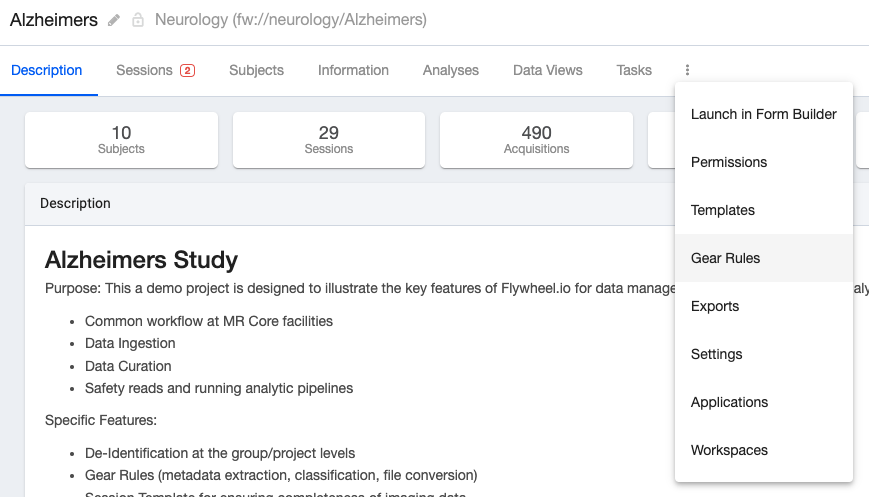
-
Click Add New Rule.
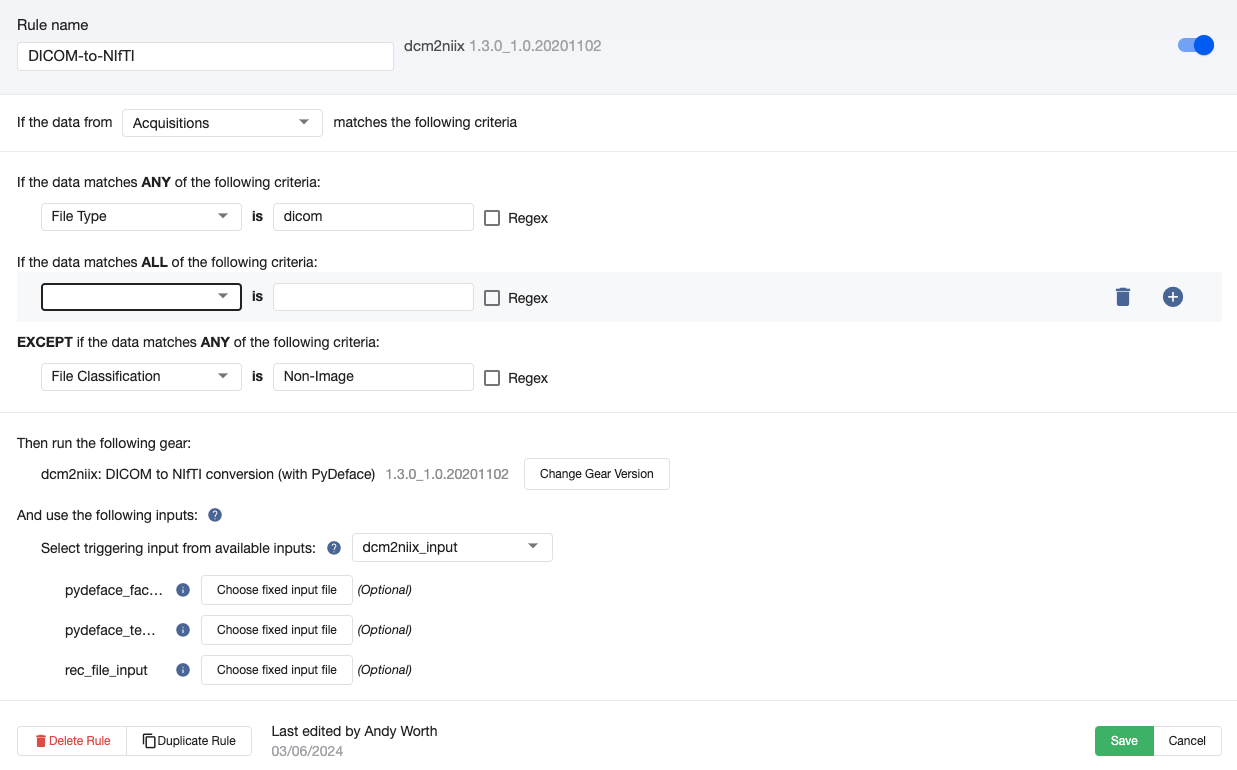
- Enter the settings and match criteria from the tables below.
- Click Select Gear, choose dcm2niix: DICOM to NIfTI conversion, then click Save on the gear rule.
| Field | Value |
|---|---|
| Rule name | Nifti Converter |
| If the file from | Acquisitions |
| Run Gear | dcm2niix: DICOM to NIfTI conversion |
| Permissions | read-write |
Match criteria (Regex indicates whether the Regex checkbox is selected):
| Section | Criterion | Value | Regex |
|---|---|---|---|
| Match ALL | File Type | dicom | Off |
| Match ALL | File Tags | file-classifier | Off |
| EXCEPT match ANY | Container Has File Classification | Non-Image | Off |
Why these criteria
File Tags is file-classifierruns the conversion only after File Classifier has tagged the file, so classification metadata is available.Container Has File Classification is Non-Imageunder EXCEPT skips acquisitions whose files are non-image (for example, DICOM reports), so the gear does not attempt to convert them.
Gear version and automatic updates
The gear version appears next to the gear name. An Auto Update Enabled badge means Flywheel updates the gear automatically when a newer version is published. Click Change Gear Version to pin a specific version instead. Pinning avoids unexpected changes to provenance or behavior when a new version is released.
Now, each time a classified DICOM is added to the project, the gear automatically runs and converts it to NIfTI.
Gear Rule Templates
Site admins can use Gear Rule Templates to define the default set of Gear rules for new projects. Project administrators can override or modify these default Gear rules within the project's management page.
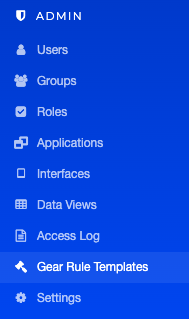
- Select Gear Rule Template from the left navigation menu.
- Click Add New Rule.
- Create a Gear Rule using the same method described above in Using Gears.
Now, any new projects created will include the Gear Rule. Changes to the Gear Rule Templates do not affect existing projects, only projects created after a change is made. Project administrators can override or modify these default Gear rules within the project's management page. Multiple Gear Rules can be defined on a project and will apply only to data within that project.
Gear Version Note
One setting you and project admins should be aware of is the Gear version. By default Gear templates use the latest version of the the gear. However, you may want to standardize on a gear version. If this is the case, make sure to choose a specific gear version to run in the gear template.
Learn more about defining gear rule logic.
Next Steps
Learn how to create a Gear Rule Template or move on to de-identify data in Flywheel.