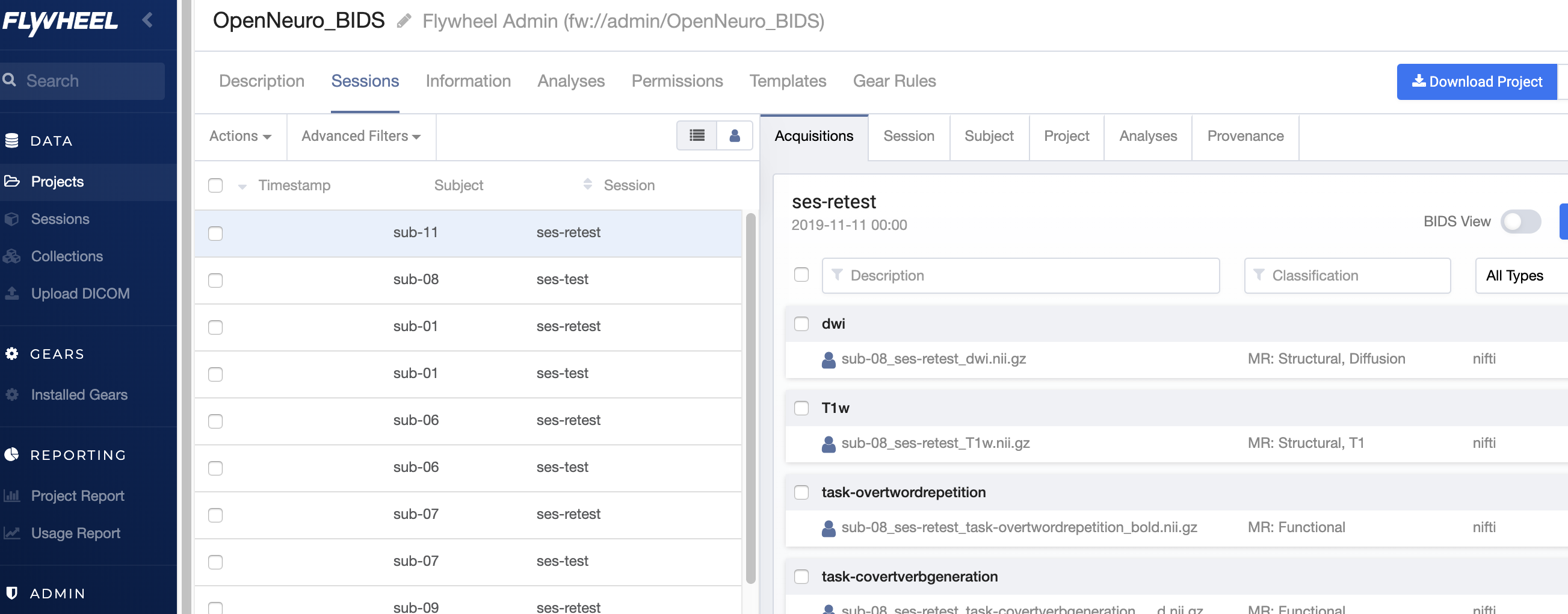
Moving Sessions
Introduction
This article explains how to move sessions to a new subject or assign it to an existing subject. You can move a single session or multiple sessions.
Instruction Steps
Moving Sessions to an Existing Subject
- Click Projects from the left menu.
- Go to Sessions.
-
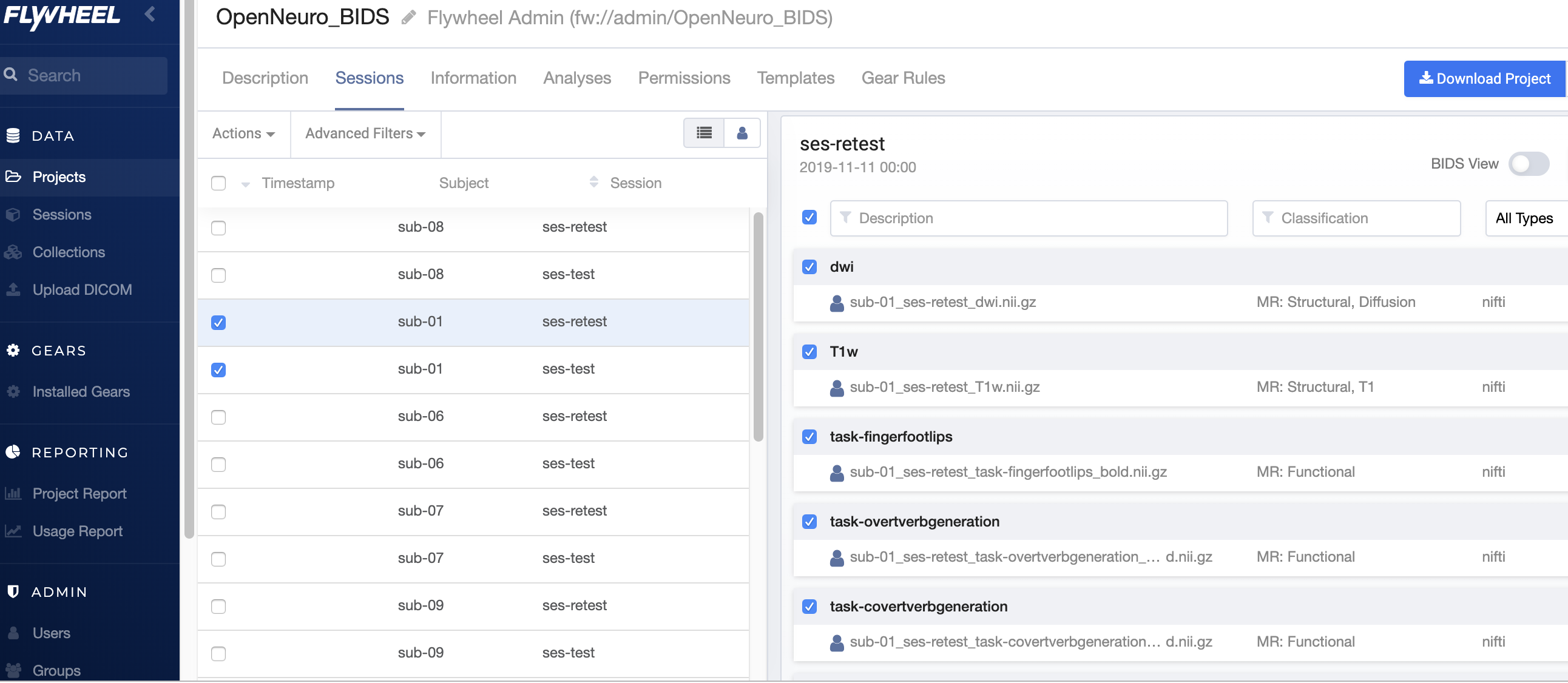
Select sessions that need to be moved.
Example: In this case two sub-01 sessions should be assigned to sub-04.
-
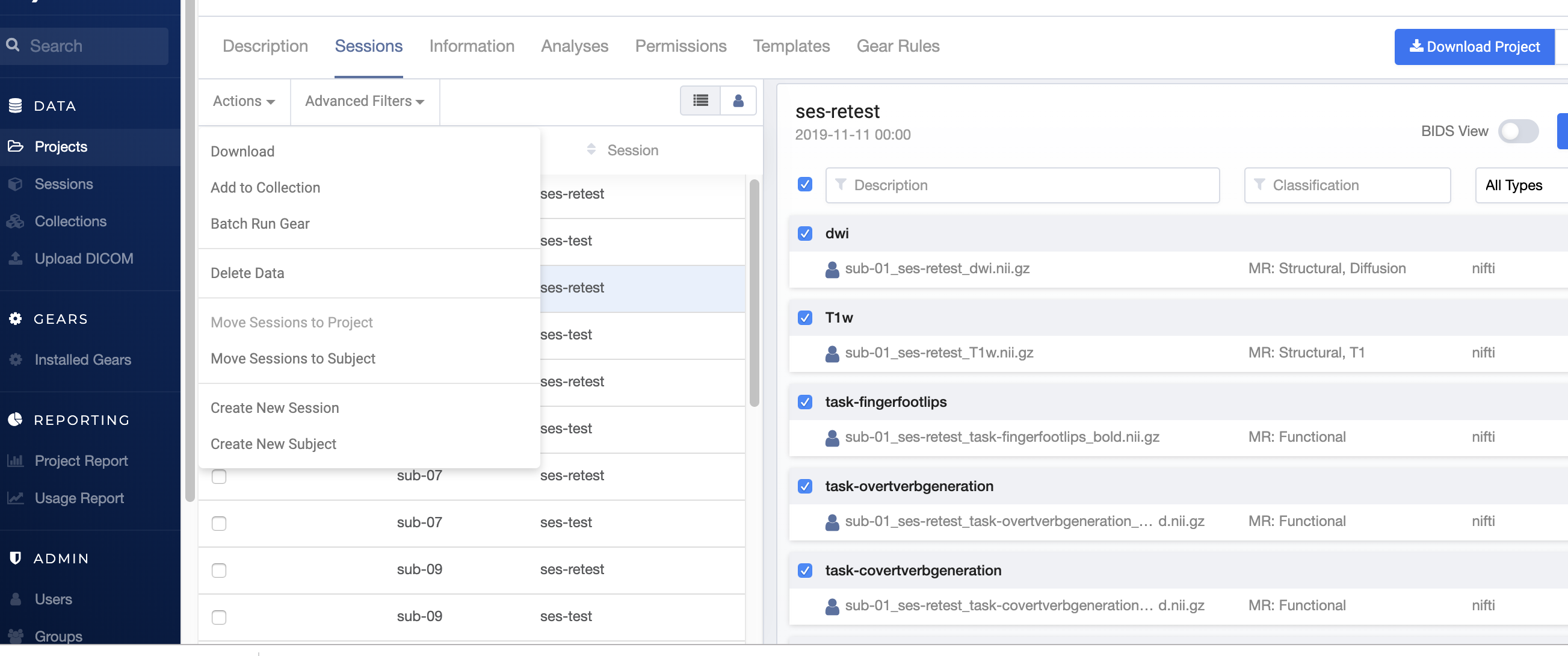
Click Actions from the above menu.
-
Select Move Sessions to Subject.
-
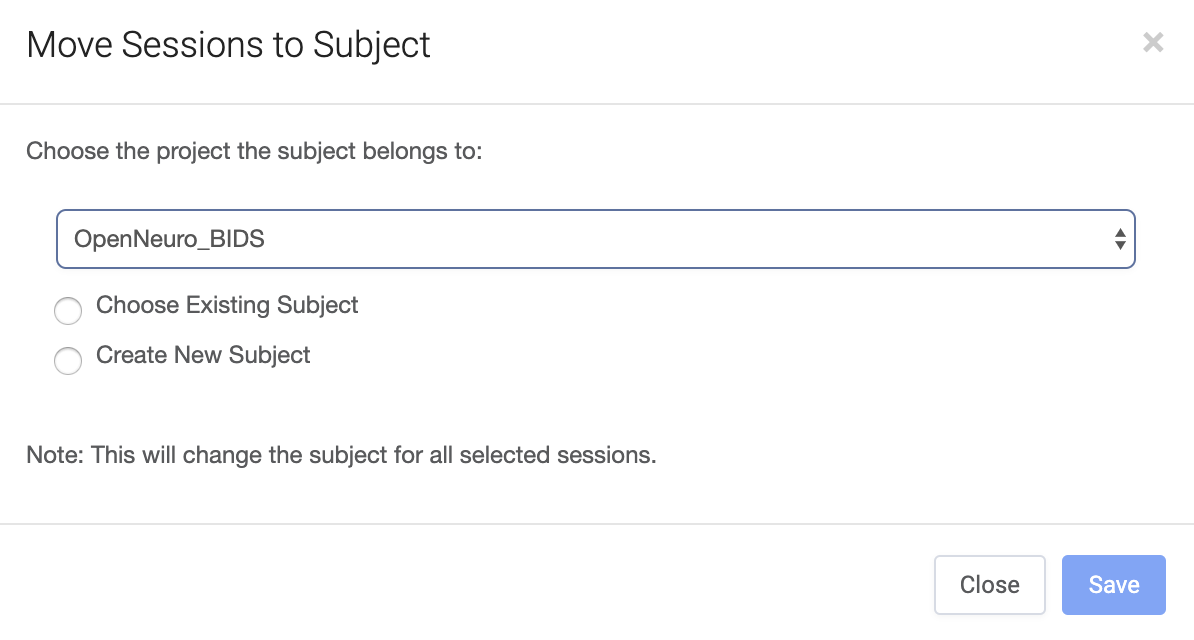
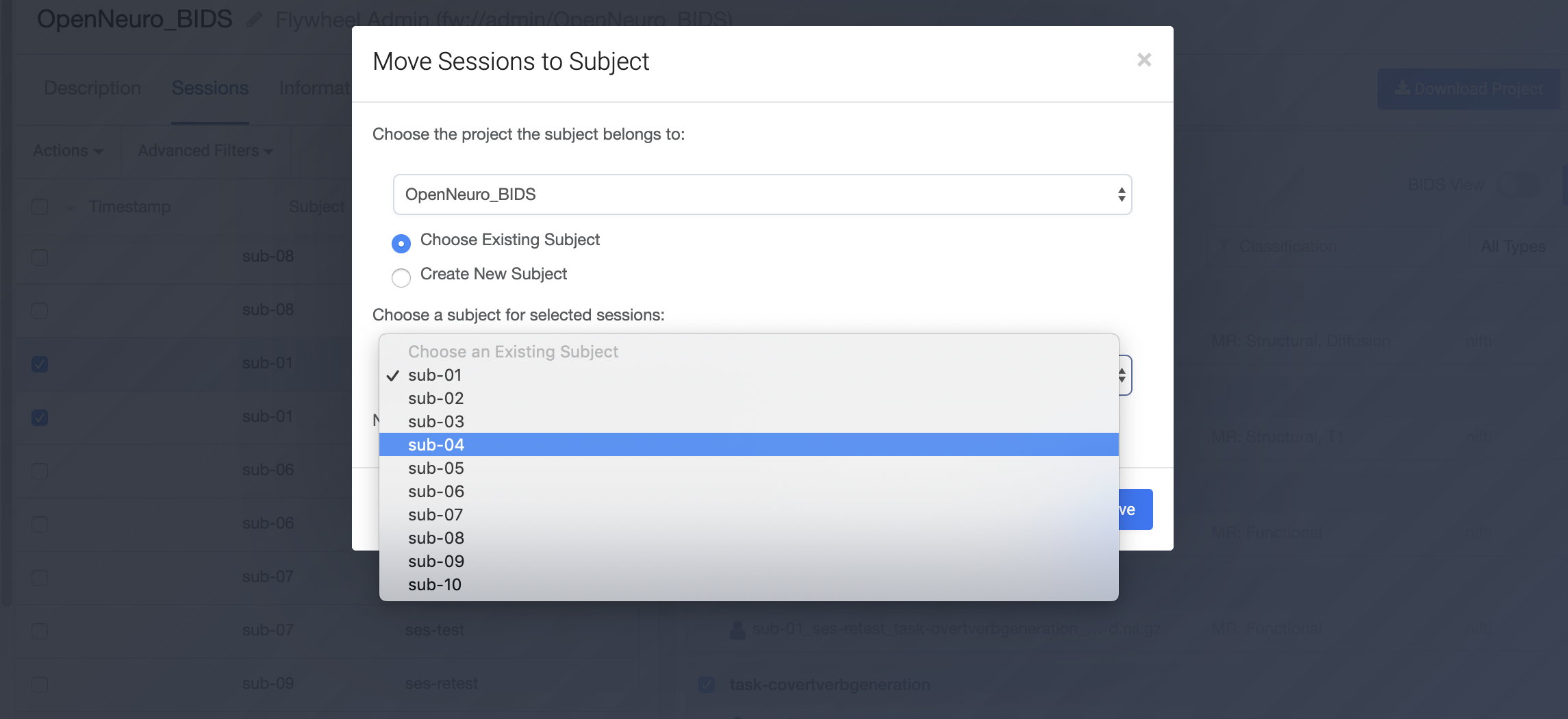
Choose the project to which the subject needs to be added.
In this case sub-01 sessions should go to the OpenNeuro_BIDS project.
-
Choose Existing Subject*, and select the subject to which sessions need to be added.
In this case we are adding the sessions to sub-04.
-
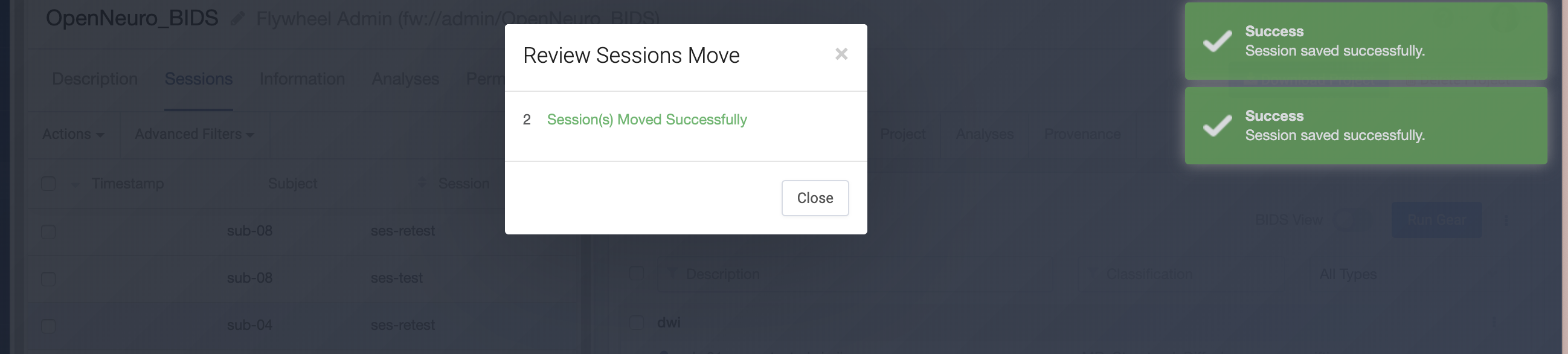
Click Save.
-
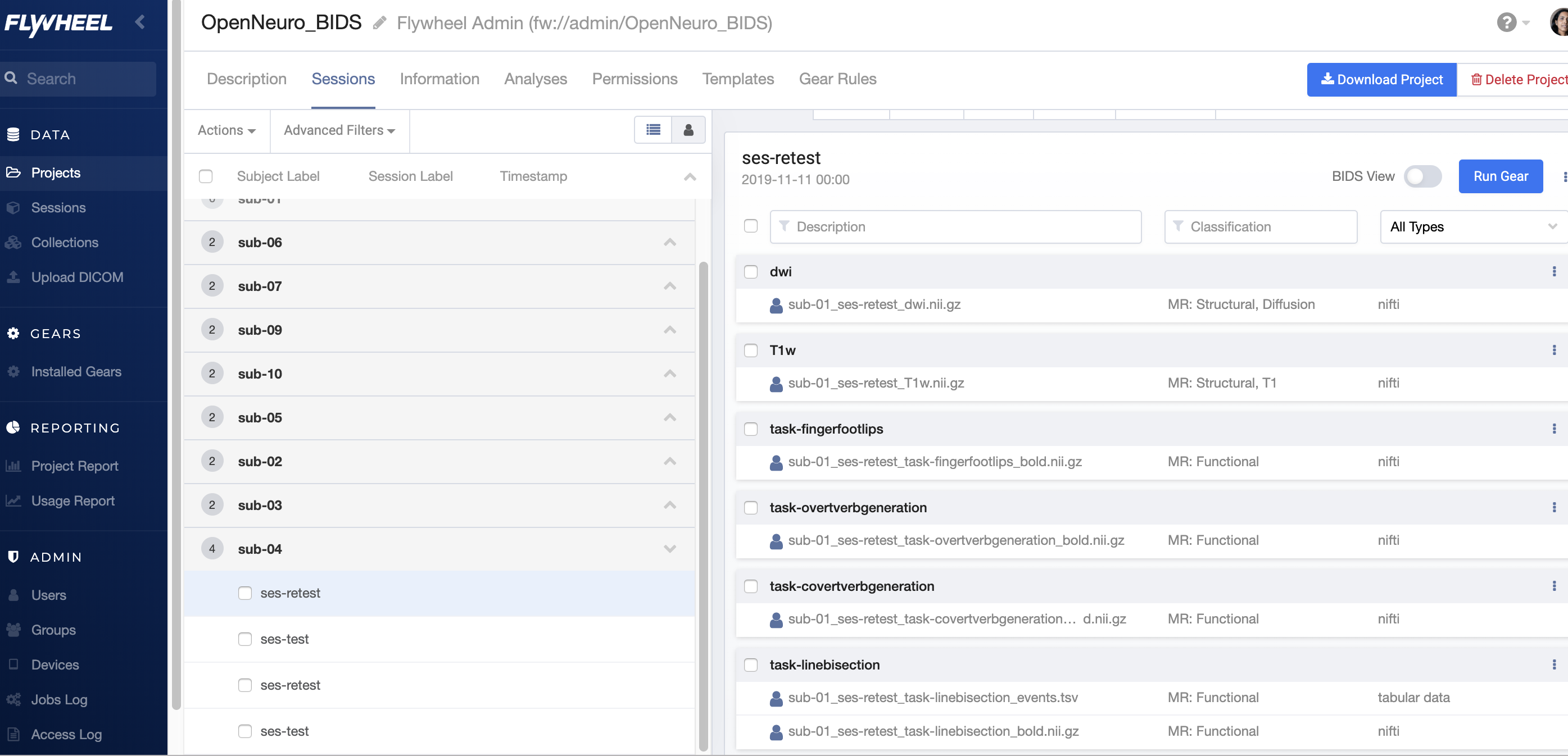
You can see the sessions have been added to existing selected subject.
The sessions now appear in sub-04.
Moving Sessions to a New Subject
-
You can also move sessions to a new subject by selecting Create New Subject option.
-
Click Save.
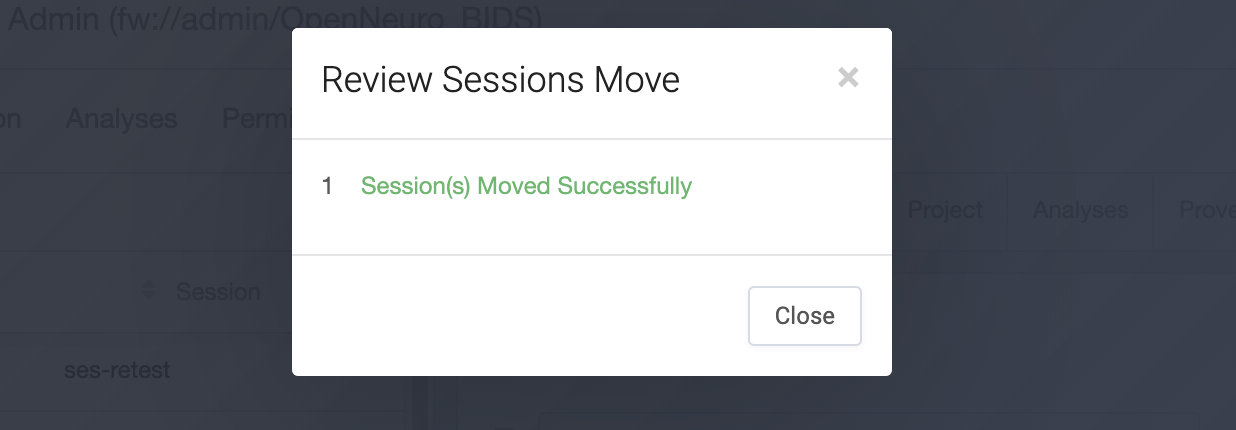
We can see sub-11 label created and sessions added to new subject label.