ETDRS Grid
The V3 viewer supports overlaying the standard ETDRS (Early Treatment Diabetic Retinopathy Study) grid on Fundus images to support qualitative and quantitative assessment of retinal lesions.
Supported images
The ETDRS grid can be overlaid on Color Fundus and Fluorescein Angiography (FA) images, with either the OP (Ophthalmic Photography) or XC (External-camera Photography) modality.
Note
The image must have pixel spacing information (Pixel Spacing (0028,0030)) for the grid to be activated. If this information is missing, an error dialog informs you that the grid cannot be activated.
Grid definition
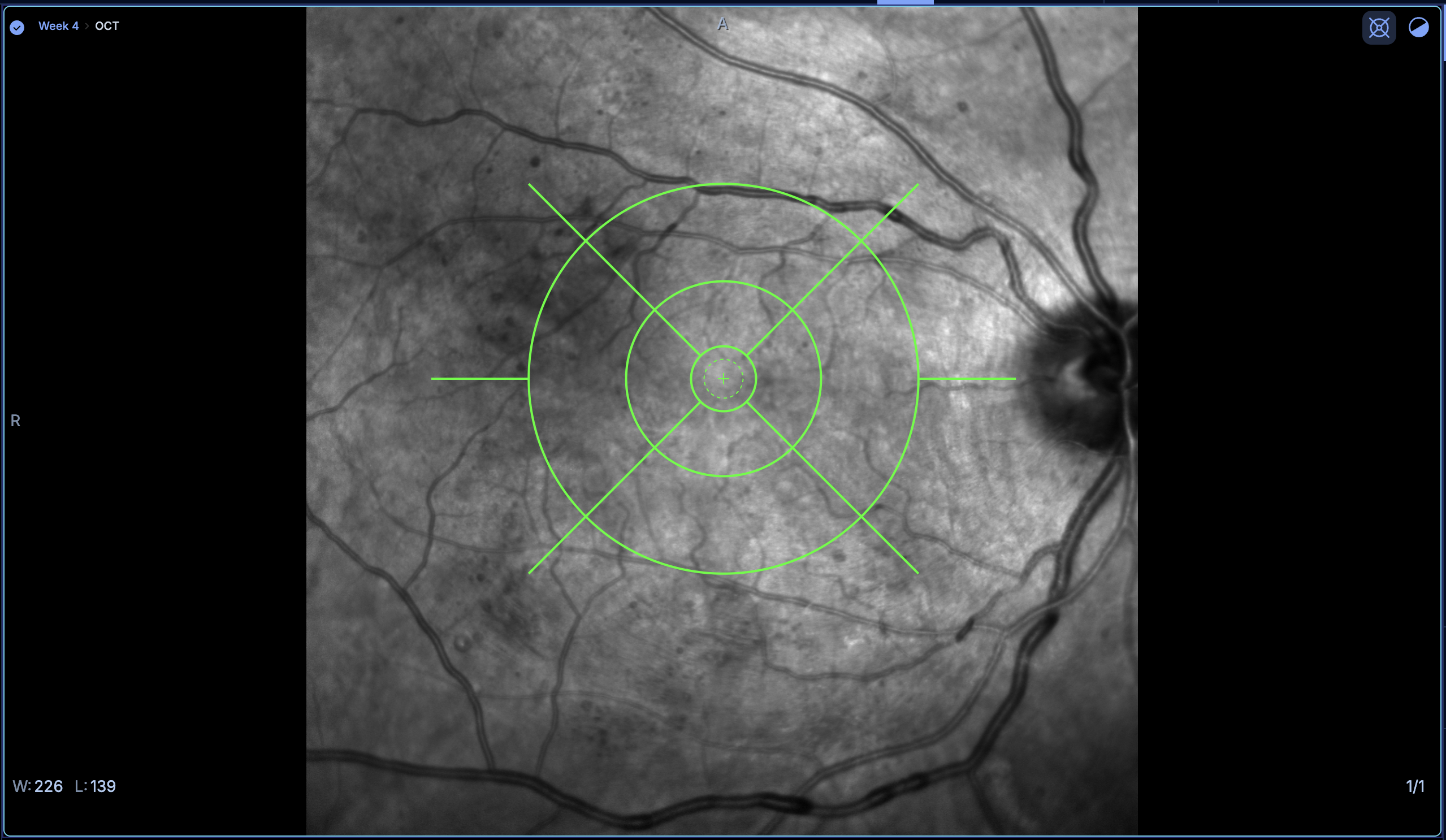
The ETDRS grid consists of 9 standard subfields, defined by three concentric circles:
| Circle | Diameter |
|---|---|
| Outer | 7.2 mm |
| Middle | 3.6 mm |
| Inner | 1.2 mm |
The grid also includes the foveal avascular zone (FAZ) reference circle, shown with a dashed outline, with a diameter of 720 microns.
Note
The diameters of the grid's circles and the visibility of the FAZ reference circle will be configurable in a future release.
Overlay the grid
To overlay the ETDRS grid on an image, activate the tool from the viewport icon, the tool list, or the G hotkey, then click once on the image to drop the grid where you want it.
If a grid already exists on the slice being viewed, using the viewport icon or the G hotkey toggles that grid's visibility instead of creating a new one. This lets graders quickly check the underlying image without interrupting their assessment.
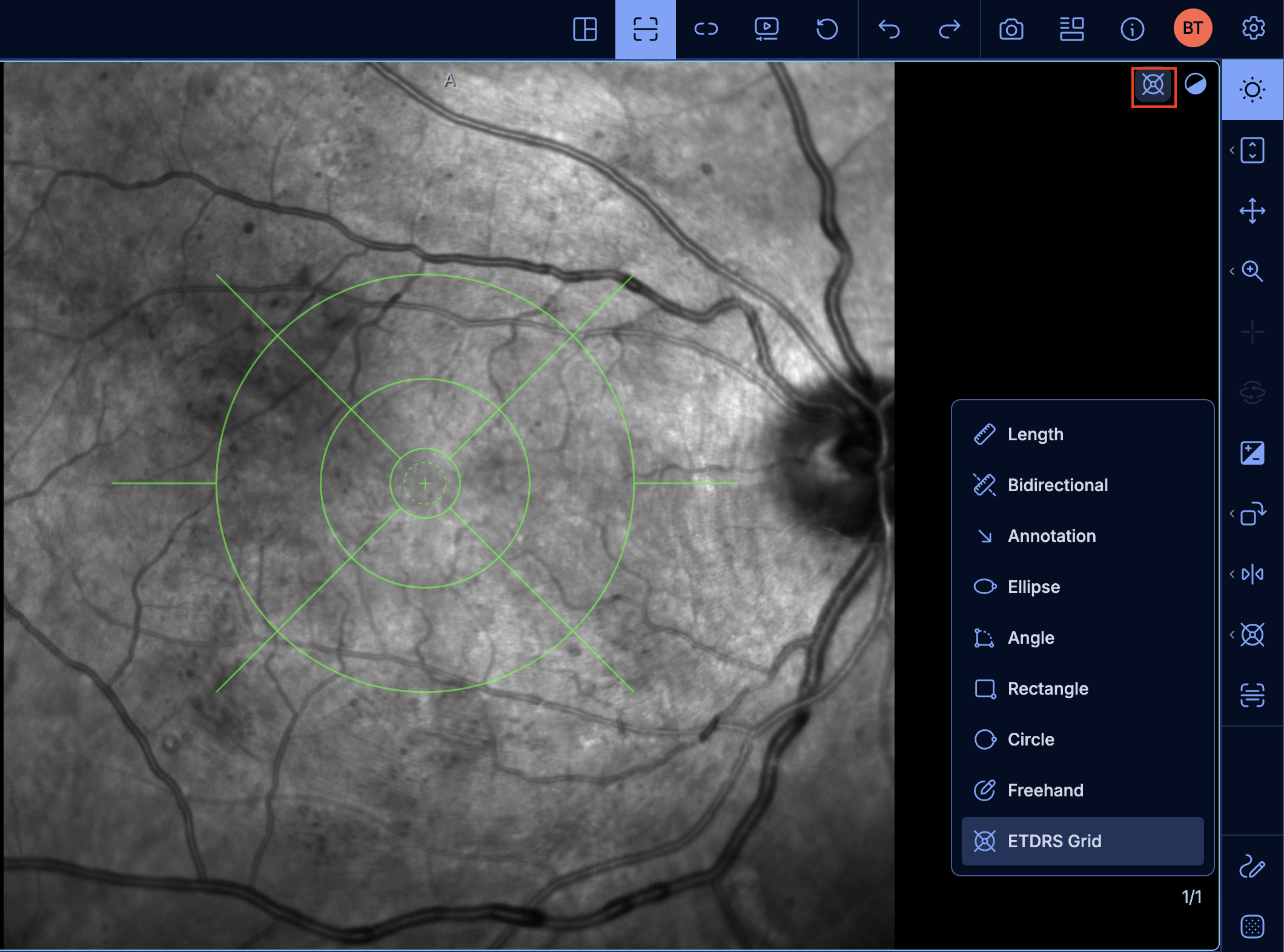
Once placed, the grid is managed like any other measurement in the viewer:
Grids are created under a dedicated Grids label in the measurement panel. No other annotation or measurement type can be assigned to this label.
Position the grid
Once dropped, click and drag the center of the grid to move it and center it on the fovea.
To align the grid with the axis connecting the fovea and the optic nerve head, drag the grid's outer rotation handles to rotate it.
Save and load the grid
Like other annotations, the position of the ETDRS grid can be saved as part of a measurement set. This allows a grader reviewing another grader's assessment to see exactly how the grid was positioned. When a Fundus image series contains multiple images, a grid can be positioned and saved independently on each image.
See Save annotations and Load annotations for instructions.
See also
- RGB Filter — Select a single color channel or manually adjust each channel's intensity in Color Fundus images.
- Create Annotations — Draw and manage annotations directly in the viewer.
- Manage Annotations — Save, load, and manage annotation versions and permissions.
- Known limitations — General viewer data requirements and limitations, including those affecting saved measurements.