Completing Adjudication Tasks
Overview
An adjudication task is created from a protocol configured for double-read adjudication. Publishing tasks from such a protocol creates a linked block of exactly two independent reader tasks plus one adjudication task. The adjudicator reviews both readers' work and determines the read of record.
Note
This page covers what is specific to adjudication tasks. For anything not covered here, adjudication tasks otherwise follow the same lifecycle as a standard task — see Start a Task, Completing Tasks, and Reviewing Completed Tasks.
Before you start
An adjudication task remains blocked and unavailable until both linked reader tasks are complete. Adjudicators will not see the task in their task list, while study administrators are able to see it, but the task's status is BLOCKED and the task cannot be opened in the Viewer (see below).
Reader and adjudicator assignments are constrained so that neither reader on a given dataset can also adjudicate it, preserving reader independence.
Adjudication tasks are also marked with a distinct icon next to the task ID, to differentiate them from reader tasks in the task list.
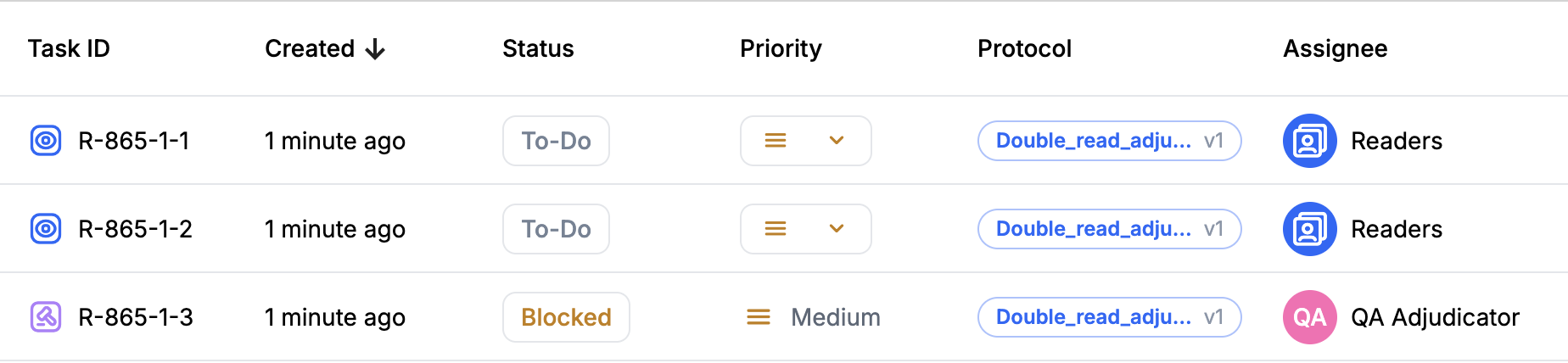
Review an adjudication task
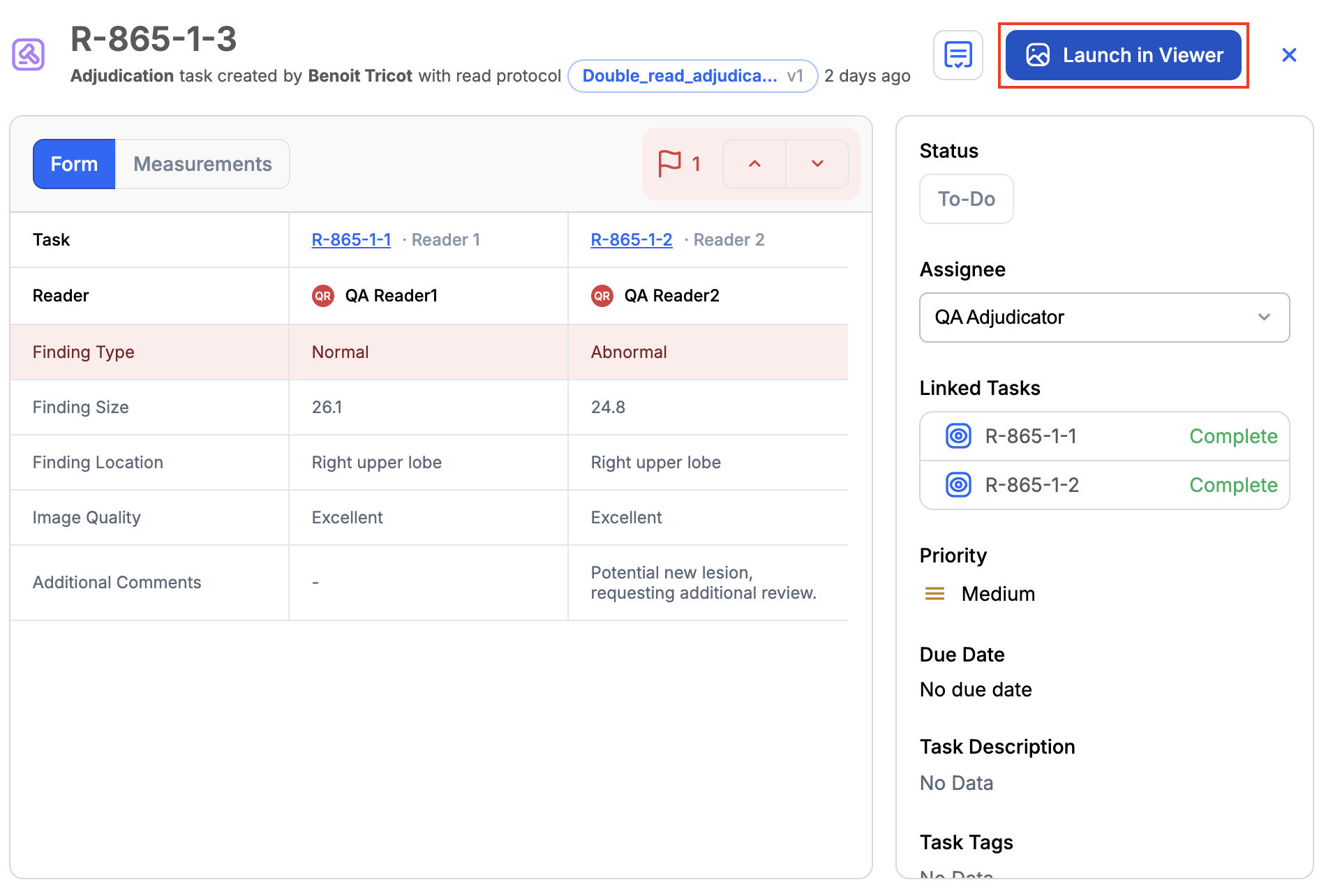
Once both reads are completed, the adjudication task's status transitions to TO-DO and the task becomes available to the assigned adjudicator or to the assigned staffing pool. By clicking on the task, the adjudicator can open the task card and do a first review of the two readers' answers to determine whether they disagree, and what they disagree on.
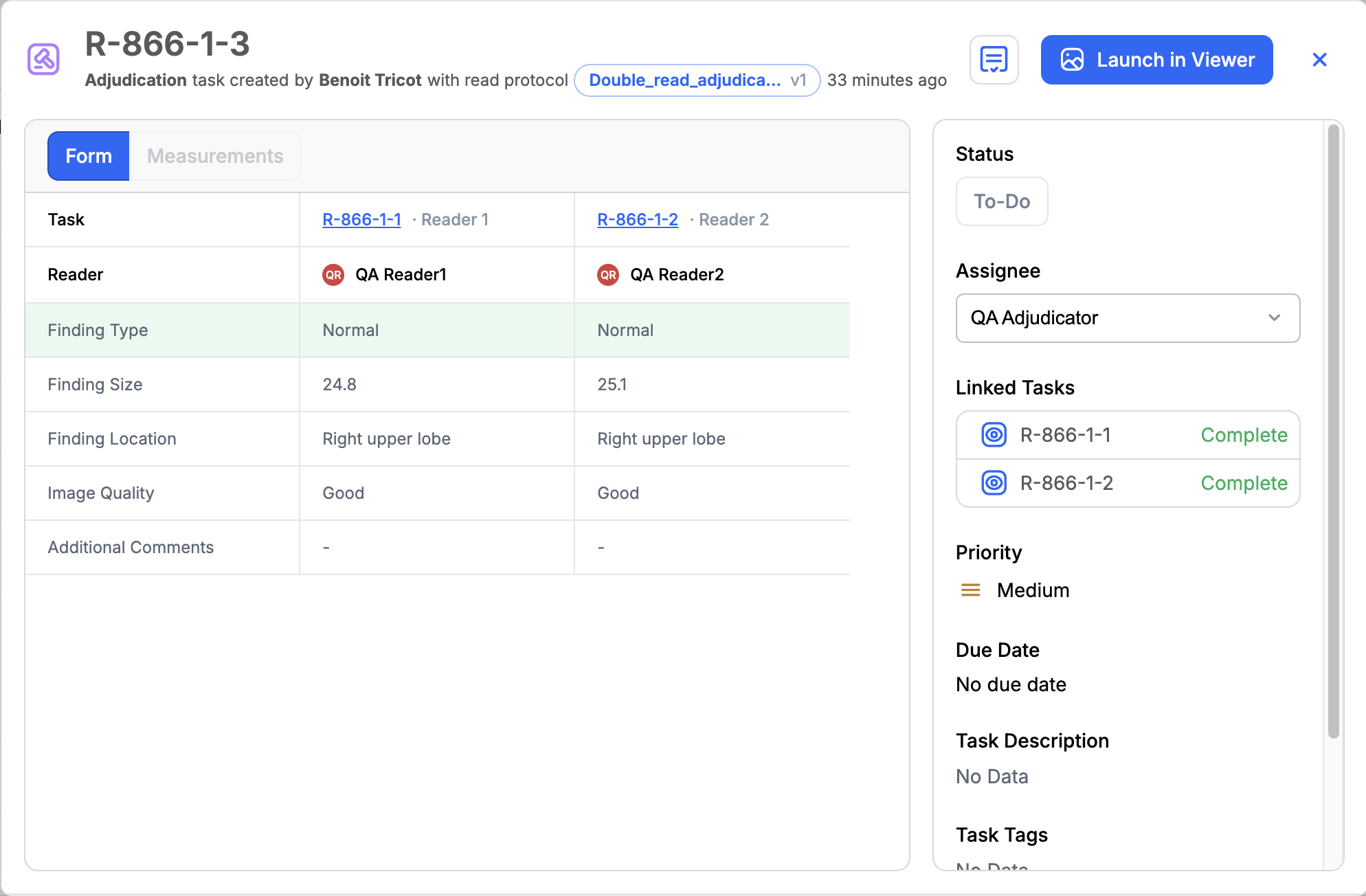
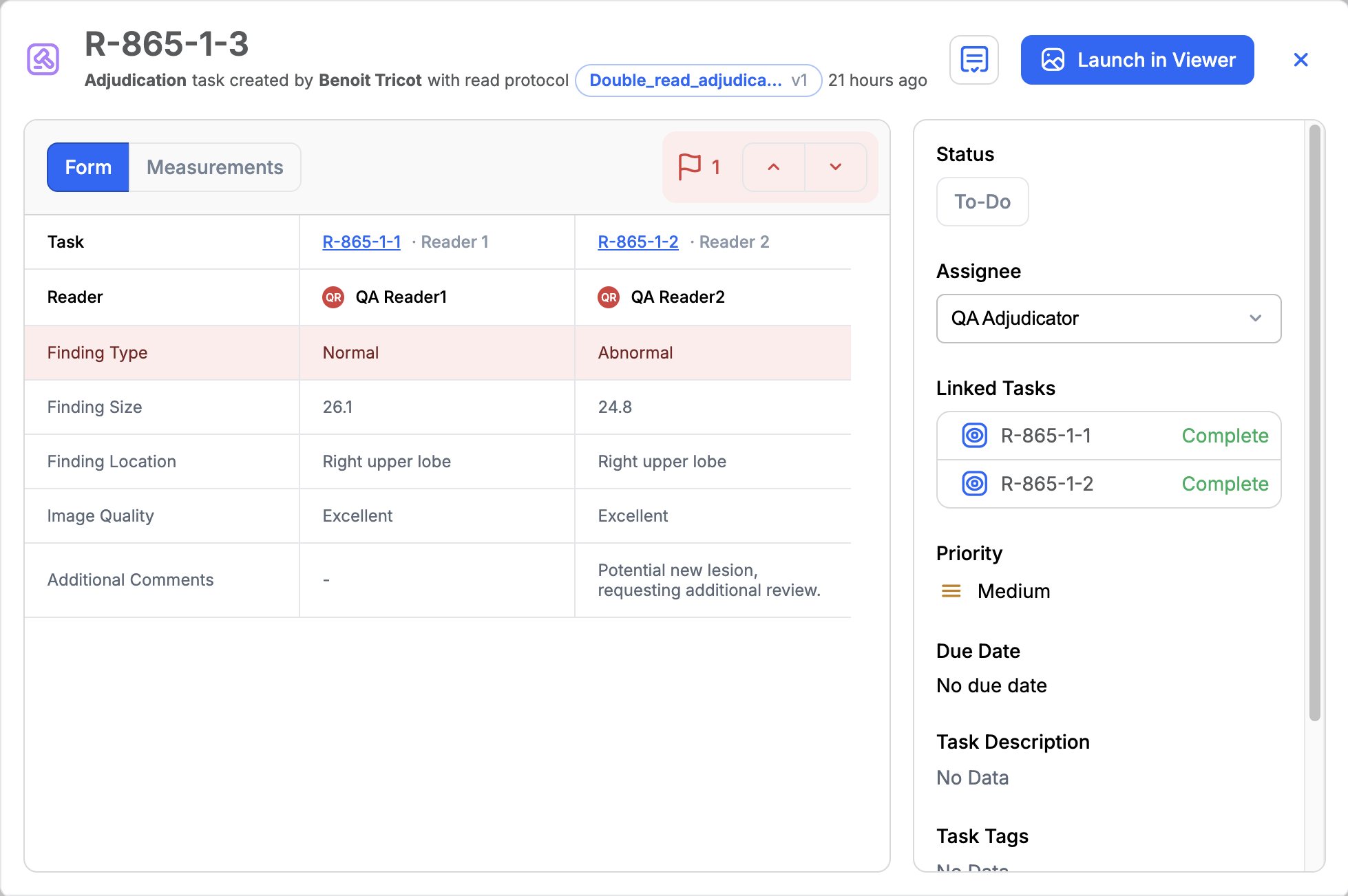
The form tab shows a table with side-by-side answers from both readers. The adjudication trigger answers are highlighted to help the adjudicator quickly identify whether an adjudication will be required.
When the readers' answers agree on adjudication trigger answers, those are highlighted in green:
When the readers' answers disagree on adjudication trigger answers, those are highlighted in red:
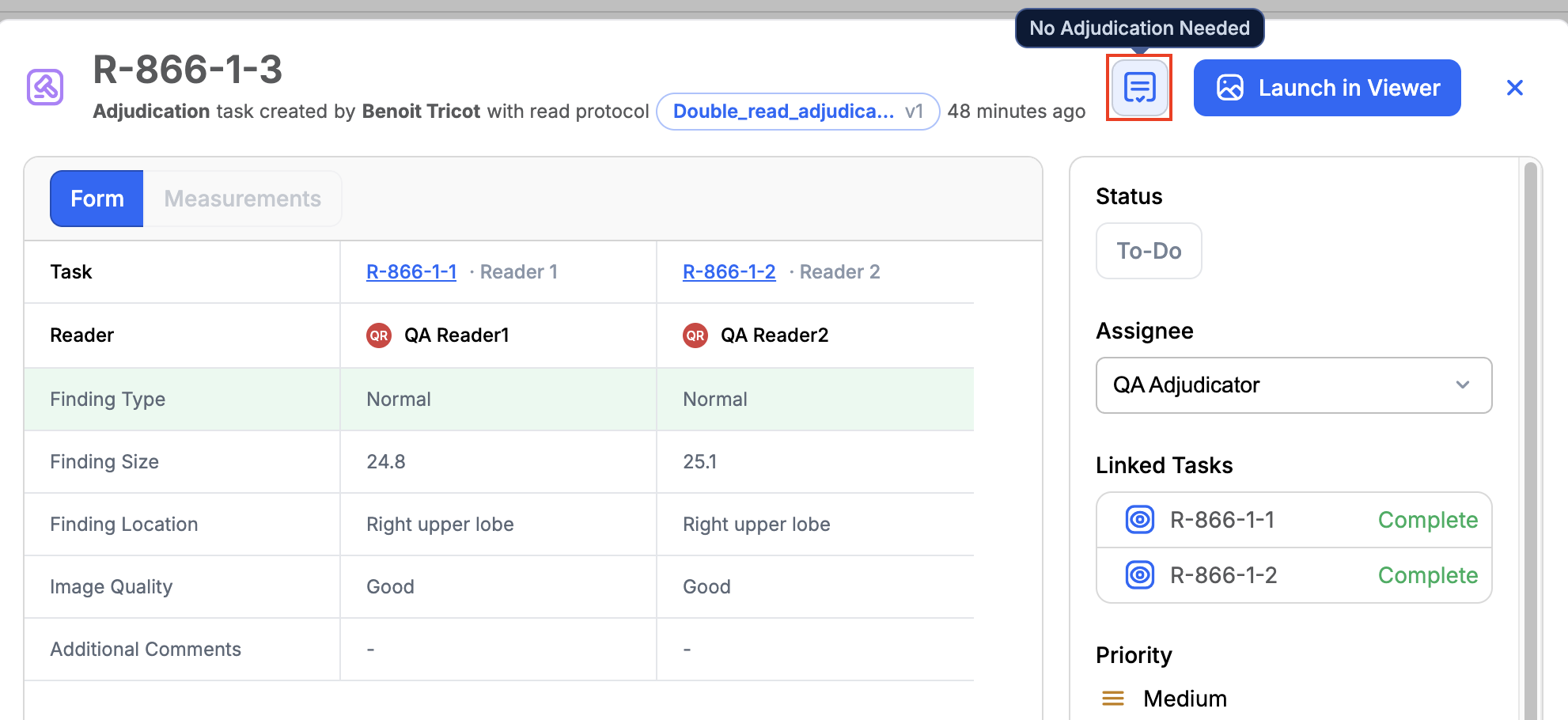
No adjudication needed
When there are no disagreements between readers that require an adjudication, the adjudicator can quickly complete the task without having to open the Viewer by clicking the "No Adjudication Needed" button on the task card. If the protocol requires an e-signature, they are required to enter their MFA code to complete the task.
Open an adjudication task in the Viewer
Opening an adjudication task launches the V3 Viewer in adjudication mode.
Only the assigned adjudicator can act on the task. If the task is assigned to a staffing pool that the adjudicator belongs to, they must assign the task to themselves before opening the task in the Viewer.
Note
Adjudicators will be able to assign the task to themselves directly from the Viewer in a future release.
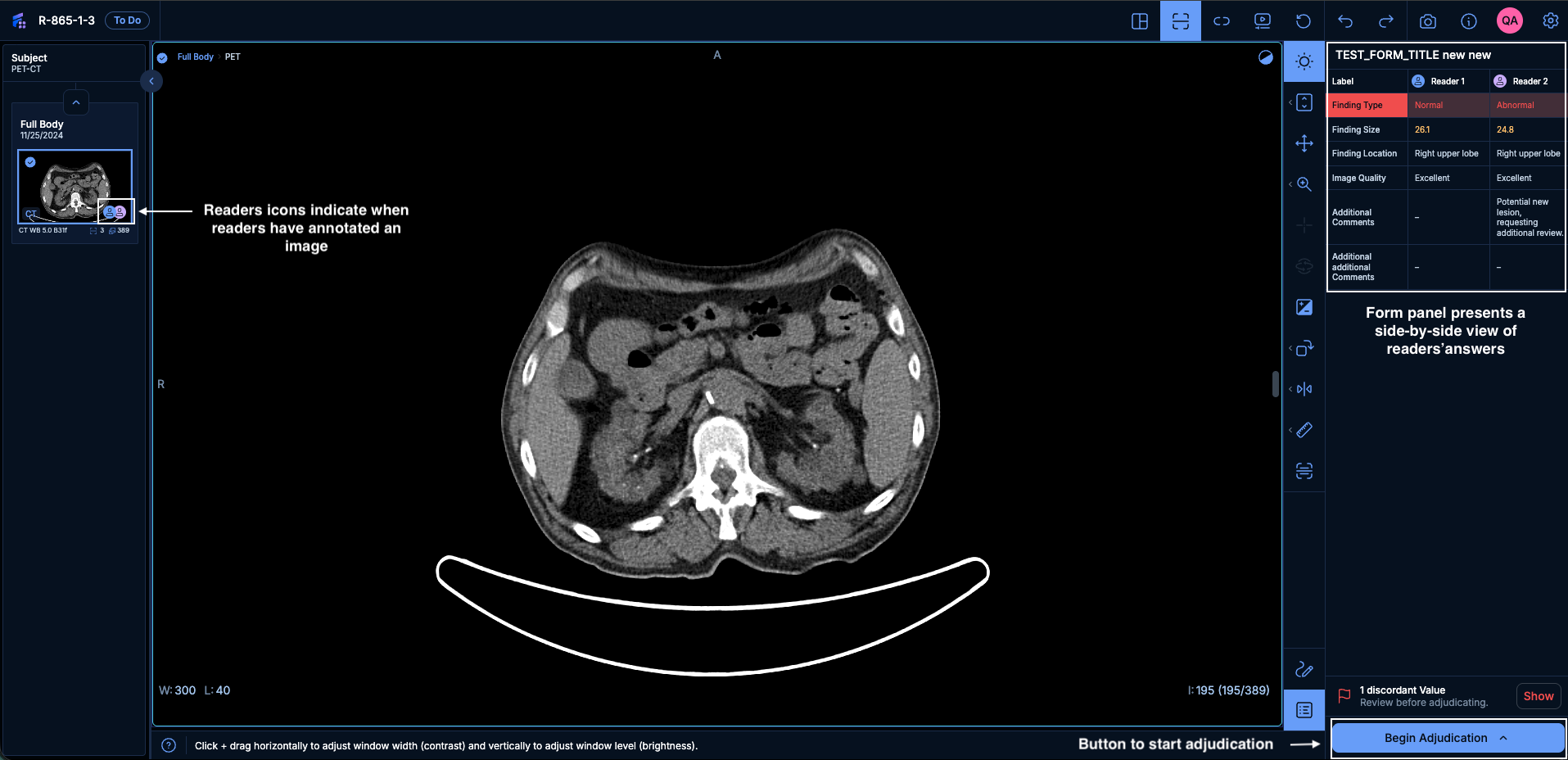
When the task opens in the viewer, the viewer interface looks similar than for a reader task (Task status, task ID, form panel) with a few differences:
- The task form panel presents a table with answers from both readers.
- Readers' icons are present on the image thumbnails in the left-side panel to indicate which images have been annotated by readers.
- Single action button at the bottom of the form panel to begin adjudication.
Review the form answers
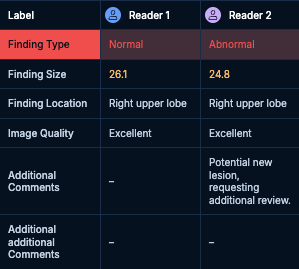
Adjudication mode displays both readers' form answers side by side in a comparison view. Adjudication trigger answers are highlighted in red when they are discordant and green when they are concordant. Other answers that differ between the two readers are displayed in orange. See example below:
Review the readers annotations
When some images have been annotated by readers, a reader icon is present over the thumbnail of those images in the left-side panel. The adjudicator can open the measurement panel to start reviewing measurements made by readers. For each image, measurements made by each reader are grouped together. Clicking on a label or individual measurement automatically scrolls to the slice where that label/measurement is present. Adjudicators can hover over measurements from either reader in the measurement panel to quickly identify which measurements were made by which reader. The measurement panel can also be used to toggle on/off the visibility of a reader's measurements.
Once adjudicators have scrolled to a slice when measurements were made by the two readers, they can go back to the form panel and resume reviewing the form. Some interactions between the form and measurements are available to continue the review without having to switch back to the measurement panel. Hovering the mouse over a reader's answers' column also highlights that reader's measurements in the viewport. Adjudicators can also click on a reader's answer's column to keep that reader's measurements in an active state in the viewport.
Warning
Adjudicators can draw measurements while reviewing, but they will not be saved with the task. Choose Perform my own read to save measurements as part of the completed task.
Choose an adjudication action
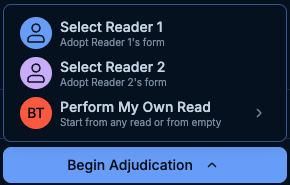
After reviewing both reads, click Begin Adjudication to establish the read of record. Three actions are available:
Select a reader's read
Click Select Read 1 or Select Read 2 to accept that reader's read as-is.
- The task form displays that reader's answers, read-only.
- That reader's measurements are retained in the viewport, locked (read-only). The other reader's measurements are discarded from the viewport.
- Upon submission, the annotations are saved as a new measurement set named
<Protocol>_<TaskID>, and the form answers are saved as a new submission.
Perform an independent read
In some cases, the adjudicator might want to provide their own answers. Click Perform my own read, then choose a starting point:
- Start from Read 1 or Start from Read 2: The task form is pre-populated with that reader's answers, and that reader's measurements are loaded into the viewport, both editable.
- Start from empty form: The task form is empty and no measurements are loaded into the viewport.
In both cases, the task status switches to "In Progress". The adjudicator has to complete all required fields and pass all validation checks before they can submit the task. See also Fill out a task form.
Save a draft
Saving a draft is only available after choosing Perform my own read. A draft is created automatically as soon as you select a starting point (Start from Read 1, Start from Read 2, or Start from empty form), and you can save further progress at any time — see Saving Draft Tasks. If you close the viewer tab and reopen the task, you are returned to your last saved draft.
Cancel and return to the comparison view
After choosing an adjudication action, click Cancel to return to the comparison view. A confirmation dialog is shown; confirming reloads both readers' measurement sets as read-only and switches the task status back to "To Do." If you cancel out of Perform my own read, any draft created for that attempt is discarded — selecting Perform my own read again starts from a blank state.
Complete the adjudication task
After choosing an adjudication action the task can be completed by clicking on the "Submit" button at the bottom of the form panel. If the protocol requires it, completing an adjudication task requires an e-signature, in the same way as completing a standard task. The form answers and measurements that were submitted by the adjudicator are saved as new records and those actions are logged in the audit trail in accordance with 21 CFR Part 11 requirements.
Review a completed adjudication task
A completed adjudication task can be reopened and reviewed in the same way as a standard completed task. The form answers and measurements saved with the task are the ones that were submitted by the adjudicator.
Troubleshooting
The same viewer-level errors described in Start a Task — authentication, missing DICOM files, network errors, invalid viewer configuration — also apply when opening an adjudication task. In addition, the following errors are specific to adjudication tasks:
| What you see | Situation |
|---|---|
| Full-page error; the task is not yet available to open. | The linked reader tasks are not both complete yet |
| Full-page error if opened via a direct link; an error message if you attempt to complete it. | The adjudication task has been canceled |
| An error dialog — "Task assignment error: This task has been re-assigned to a different user, you no longer have the permission to complete it." The Begin Adjudication button is no longer available. | You are no longer the assignee (the task was reassigned while you had it open) |
| Full-page error — "You do not have permission to access this resource." | You try to access the task via a direct link without the required permissions |
Known limitations
Warning
Reader identities are not yet fully masked from the adjudicator, so blinding is not fully enforced in this release.