Fill out a task form
Overview
Task forms allow to collect data as images are being reviewed and evaluated. They are defined in the protocol used to create the task. When a task is launched in the Flywheel viewer, the task form is displayed in the right-side panel. A task can only be completed once the form has been correctly filled out.
Form field types
There are currently six different field types supported in task forms (see also the Protocol Form technical reference):
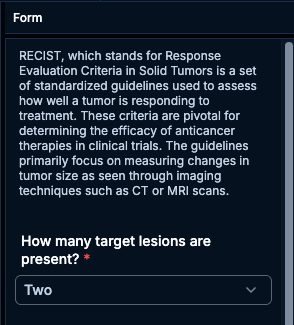
- Paragraph: This type of field does not require user input and is used to provide additional context or information to the person filling out the form.
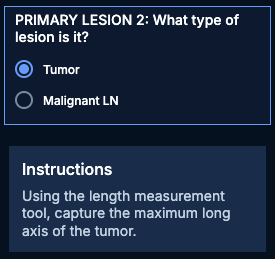
- Instructions: This type of field is generally used to provide additional instructions to the user for the completion of their task. Those fields can be displayed only upon providing a specific answer to a question. See below an example of instructions that are displayed when "Tumor" is selected as an answer.
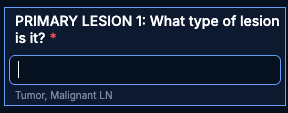
- Free-text: This type of field allows the user to type in their answer to a question. Some conditions can be configured on which entries are allowed.
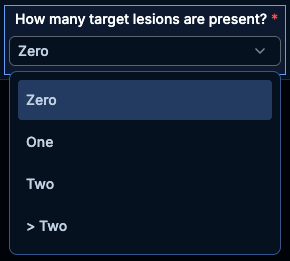
- Dropdown: This type of fields forces the user to select an answer from a dropdown list.
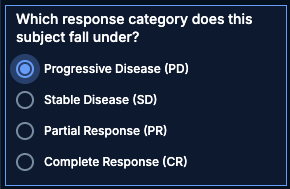
- Radio buttons: This type of field forces the user to select one answer from multiple choices.
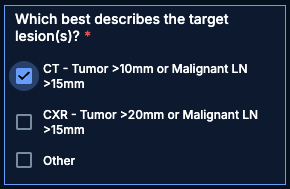
- Checkboxes: This type of field allows the user to select one or multiple answers from a a list of answers.
Required questions
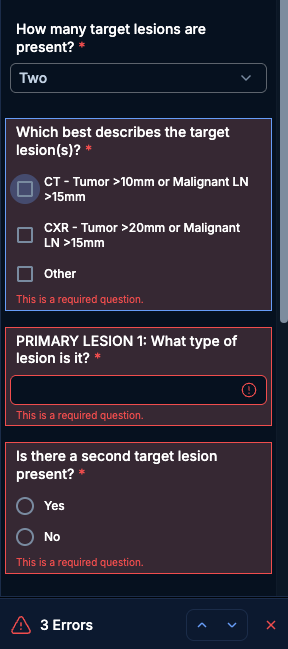
Some questions in the form must be answered in order to complete the task. These questions are identified with a red asterisk. If you try to complete the task by clicking the Submit button before all required questions have been answered, an error message is displayed and missing answers are highlighted in the form. The up and down arrows allow you to jump from one question to the next.
Conditional visibility
The form can be configured so that additional questions appear in the form based on the answers that you provide. For that reason it is good practice to answer questions in order when filling out the form. See below an example of a form where the answer to the first question determines which follow-up questions are displayed in the form.
Form sections
Some forms group related questions into sections, each with its own title. Click a section header to expand or collapse the section. A section expands automatically when you move to a question inside it. If a question inside a section has a missing or invalid answer, the section header shows an error indicator.
Sections can also use conditional visibility, so an entire section appears only when you give a specific answer to another question. If you answer questions in a section and then change the answer that controls it, the section is hidden but your answers are kept. If the section is displayed again before you submit, your answers are still there. When you submit the form, answers in hidden sections are not saved.