Using the Jobs Log, Views, Tabs and Actions
A user can manage queued gear jobs and view any previously run job on the Job Logs Page. This log shows all inputs, outputs, and configuration for each gear run on your site. It is also helpful for troubleshooting gear issues and for data provenance.
Master List
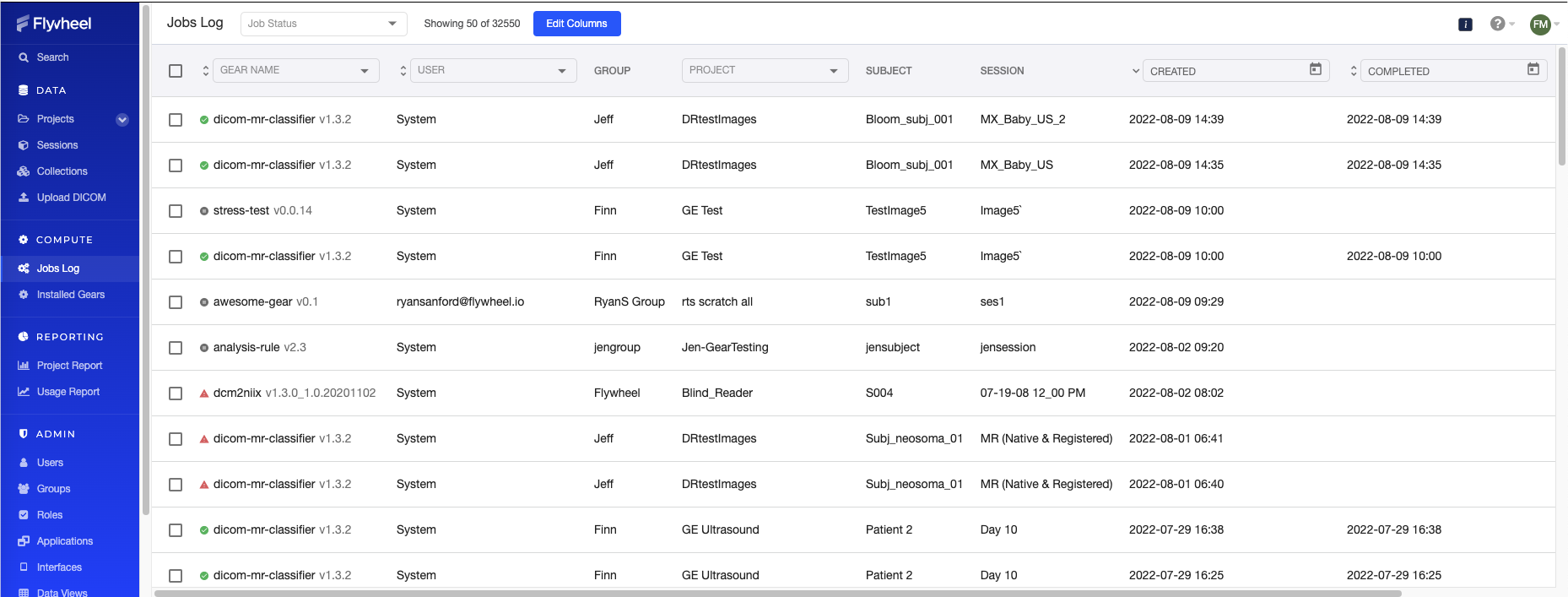
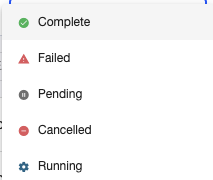
A list of all jobs is shown with the Gear Name, User, Group, Project, Subject, Session, Created Date, Completed Date, and Gear Role. The job status is shown with five possible statuses for a job as displayed below.
The Gear Role column displays the role that was configured on the gear rule at the time each job ran. This reflects the historical setting, not the role currently configured on the rule.
*
Filter the list of jobs on gear name by clicking the column header and selecting the desired gear from the dropdown list. Filters are provided for the User, Project, Created, Completed and Tags.
Information, Configuration and Logs Tabs
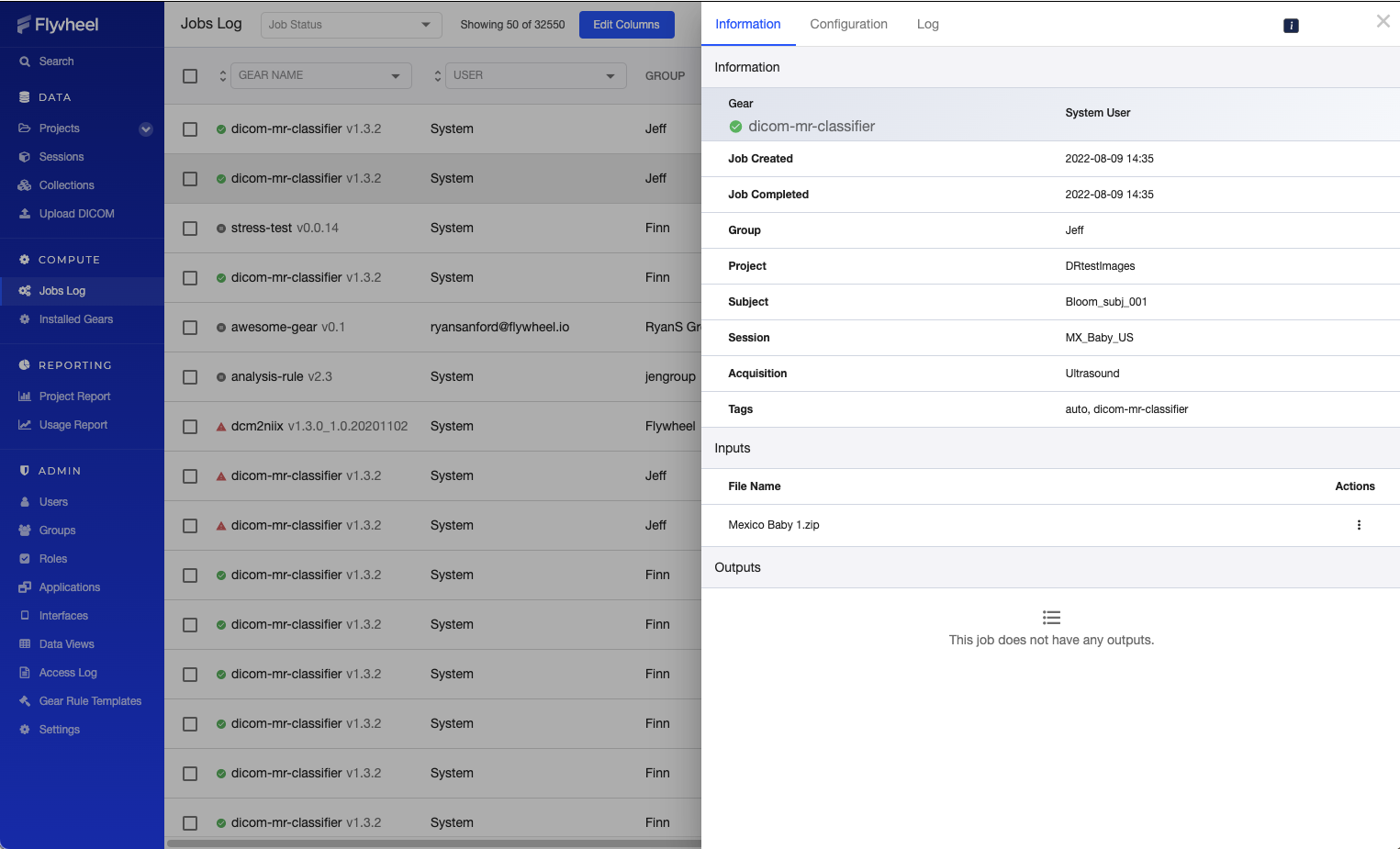
By clicking on a row in the log, a pane will open to the right with additional information on that job. Click on the upper right corner close icon to go back to the full list view.
Information Tab
Details about the creation of the job, input files and output files. The Action Column is available for files, such as Information, Download, Version History, View in Legacy OHIF Viewer and View in OHIF Viewer.
Configuration Tab
The configuration options for the gear are set at the time of the job run and can be viewed and downloaded from the Configuration Tab.
Log Tab
The system generated log can be viewed and downloaded from the Log Tab. The logs for jobs are retained indefinitely in Flywheel, unless the job is deleted by the user.
Cancel a Job
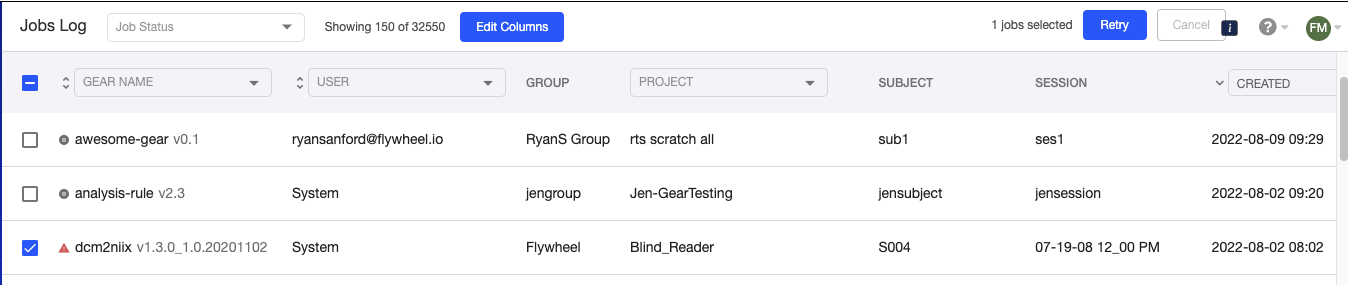
If a job is Pending or Running, one can cancel it by selecting the job using the checkbox and then clicking the Cancel button.

Retry a Job
If a job is Failed, one can retry the job by selecting the job using a checkbox and then clicking the Retry button.
System Retries
The system monitors the execution state of jobs and will attempt automatic retries in situations where a gear execution ends due to overloading the resources of it's virtual compute. The job will be marked as 'Failed' and a retry will be initiated automatically. A job will be retried a maximum of 3 times in this situation.
Editing Column View
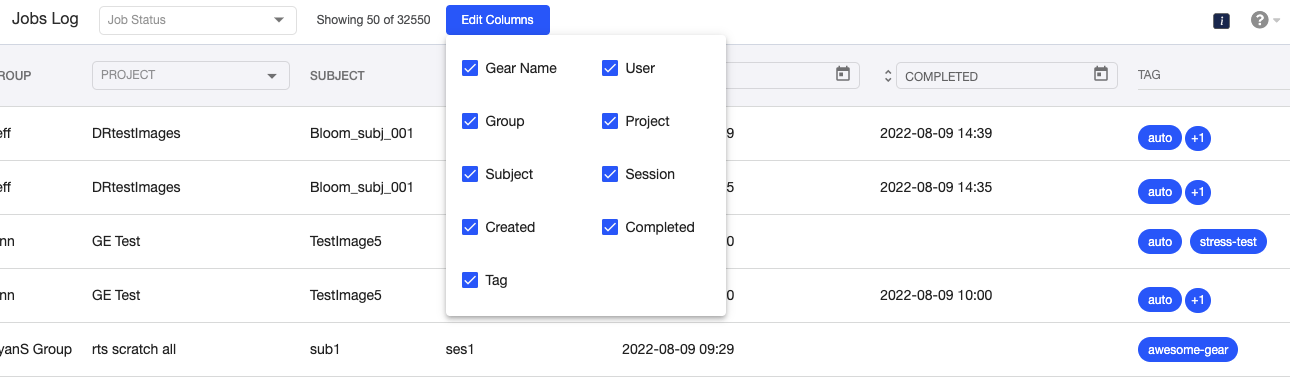
Click Edit Columns to select which columns should be in the view. This setting will persist until a refresh is selected or one leaves the window.
Next Steps
Learn more about monitoring and reporting with the access log or move on to the Viewer Extension Applications and Devices features for advanced configuration options.